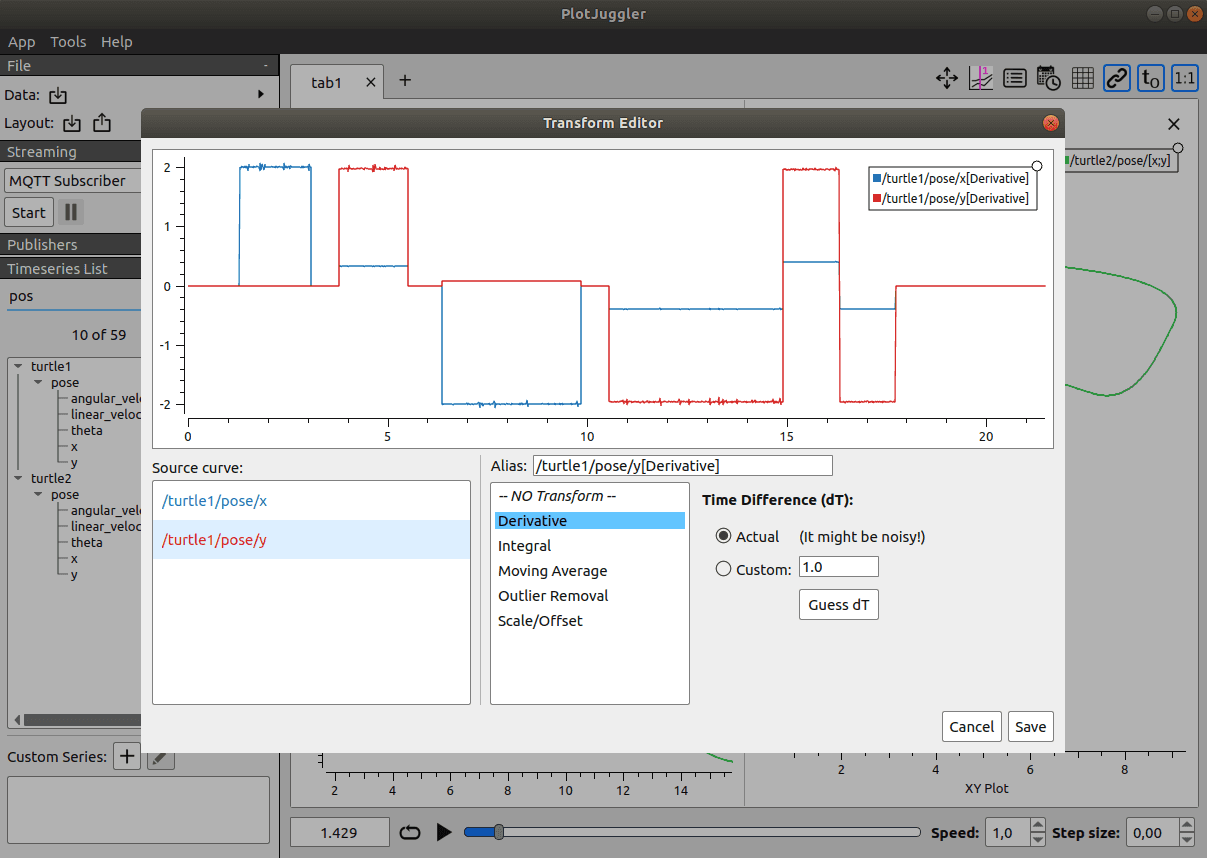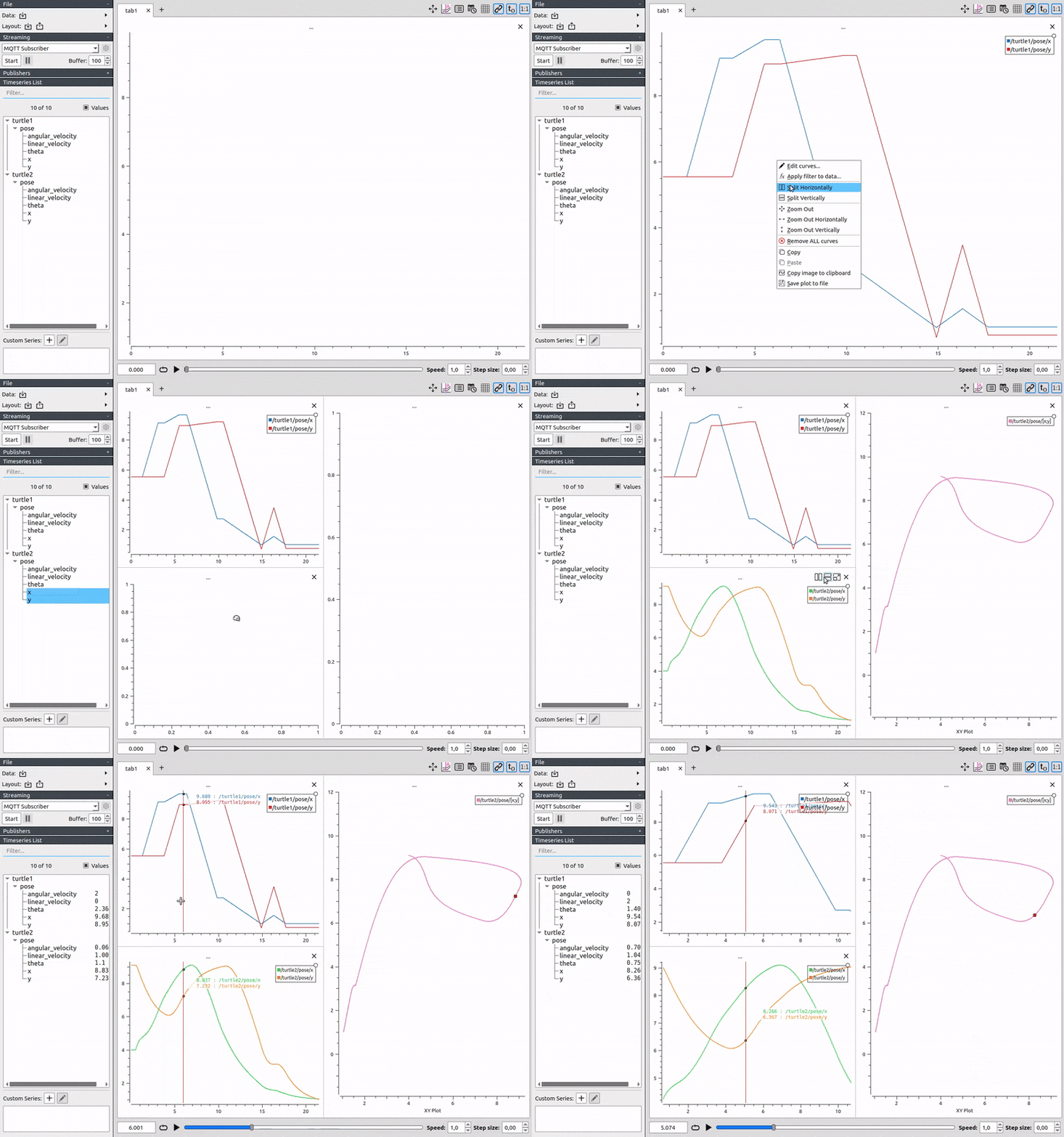
When your Unitree G1 does something unexpected — the left leg trembles while standing still, the IMU persistently reports a 2-degree roll offset, or an elbow joint shows abnormally high torque — the first question is always: what is the data actually saying? PlotJuggler answers that question faster than any other tool in the ROS2 ecosystem. This guide takes you from an empty terminal to streaming G1's 23 joints and IMU live into PlotJuggler in under 15 minutes.
Series Roadmap — 5 Articles
| # | Article | Content |
|---|---|---|
| 1 | ROS2 Setup & Live Streaming (this post) | Install PlotJuggler, configure CycloneDDS, subscribe /lowstate and /sportmodestate |
| 2 | Joint Layout + MCAP Recording | Organize panels by limb, save layout templates, record .mcap files |
| 3 | IMU, Quaternion & FFT Debugging | Analyze pose from quaternion, detect mechanical vibrations with FFT |
| 4 | Lua Transforms — Custom Metrics | Write Lua scripts to compute power per joint, slip index, derived signals |
| 5 | ZMQ Publisher + Video Overlay for Sim2Real | Bridge ZMQ from MuJoCo to PlotJuggler, overlay camera feed, compare sim vs real |
Why PlotJuggler Instead of RViz or rqt_plot?
rqt_plot handles only 4–5 topics simultaneously, lags visibly, and cannot analyze recorded data after the fact. RViz excels at 3D spatial visualization but is not a time-series tool. ros2 topic echo becomes completely unreadable when 29 motor fields are changing 500 times per second.
PlotJuggler solves three problems at once:
- Flexible layout — drag and drop fields into 10+ synchronized panels, zoom anywhere on the shared timeline
- Live streaming with internal buffer — monitor real-time while retaining a 60-second buffer to scrub back to any moment
- Direct
.mcapfile loading — noros2 bag playneeded, files are self-contained with embedded schemas
With the G1, you'll need all three. Live streaming to watch the robot during a test run, the internal buffer to rewind to the exact moment it stumbled, and .mcap files to compare multiple runs side by side after the session.
Prerequisites
- Ubuntu 22.04 on your workstation
- ROS2 Humble, Iron, or Jazzy installed and sourced
- Unitree G1 powered on, connected via Ethernet cable directly to your PC
- Basic terminal familiarity:
ip addr,ros2 topic list,ping
This guide uses ROS2 Humble for all example commands. Replace humble with iron or jazzy for newer distributions — everything else remains identical.
Step 1: Install PlotJuggler and the ROS2 Plugin
A single command installs both PlotJuggler core and all ROS2 plugins (Topic Subscriber, Bag Reader, Re-publisher):
sudo apt install ros-humble-plotjuggler-ros
Iron/Jazzy: Replace
humblewithironorjazzy. The package nameplotjuggler-rosstays the same.
Verify the installation:
source /opt/ros/humble/setup.bash
ros2 run plotjuggler plotjuggler --version
# Expected: PlotJuggler version 3.x.x
The ros-humble-plotjuggler-ros package bundles everything — you do not need to separately install plotjuggler and plotjuggler-ros-plugins as older build-from-source instructions suggest.
Step 2: Physical Connection and Network Configuration
The G1 communicates with your PC over Ethernet. The robot uses a fixed IP of 192.168.123.10 — your PC must be on the same 192.168.123.x subnet.
Find your Ethernet interface name:
ip addr show
# or: ifconfig
Look for the interface with UP state connected to the Ethernet port (typically eth0, enp3s0, eno1, enx...). Note the name — you will use it in the CycloneDDS configuration.
Set a static IP via nmcli (terminal):
# Replace "Wired connection 1" with your connection name
# Replace "enp3s0" with your actual interface name
sudo nmcli connection modify "Wired connection 1" \
    ipv4.method manual \
    ipv4.addresses "192.168.123.99/24" \
    ipv4.gateway "" \
    connection.autoconnect yes
sudo nmcli connection up "Wired connection 1"
Or via Ubuntu Network Settings (GUI):
- Open Settings → Network → the Ethernet connection to G1 → gear icon (⚙)
- IPv4 Method: Manual
- Address:
192.168.123.99, Netmask:255.255.255.0, Gateway: (leave empty) - Click Apply, then toggle the connection off and on
Verify the physical link:
ping -c 4 192.168.123.10
# Normal output: 64 bytes from 192.168.123.10: icmp_seq=1 ttl=64 time=0.4 ms
# "Request timeout" means: cable issue, or IP not configured correctly
Step 3: Configure CycloneDDS — Do Not Skip This
This is the most commonly overlooked step. ROS2 Humble defaults to FastDDS as its middleware, but the Unitree G1 runs CycloneDDS. If the two sides use different DDS implementations, ros2 topic list will return nothing — even with the robot fully operational and broadcasting data.
Install the CycloneDDS middleware for ROS2 Humble:
sudo apt install ros-humble-rmw-cyclonedds-cpp
Create a configuration file at ~/cyclonedds_g1.xml:
<CycloneDDS>
  <Domain>
    <General>
      <Interfaces>
        <!-- Replace "enp3s0" with your actual Ethernet interface name connecting to G1 -->
        <NetworkInterface name="enp3s0" priority="default" multicast="default" />
      </Interfaces>
    </General>
  </Domain>
</CycloneDDS>
Critical: Use the physical interface name (e.g.,
enp3s0,eth0,eno1). Do not uselo(loopback) unless testing locally with a simulator. CycloneDDS needs the correct interface to send multicast discovery packets to the right subnet.
Export the environment variables:
export RMW_IMPLEMENTATION=rmw_cyclonedds_cpp
export CYCLONEDDS_URI=file:///home/$USER/cyclonedds_g1.xml
Auto-load on every new terminal:
echo 'export RMW_IMPLEMENTATION=rmw_cyclonedds_cpp' >> ~/.bashrc
echo "export CYCLONEDDS_URI=file:///home/$USER/cyclonedds_g1.xml" >> ~/.bashrc
source ~/.bashrc
Tip for multi-robot workstations: If your workstation also connects to other robots that do not use CycloneDDS, avoid hardcoding into
.bashrc. Use an alias instead:bash# Add to ~/.bashrc alias ros-g1='export RMW_IMPLEMENTATION=rmw_cyclonedds_cpp && \ export CYCLONEDDS_URI=file:///home/$USER/cyclonedds_g1.xml && \ echo "CycloneDDS G1 mode active"'Type
ros-g1before working with G1. Other terminals remain unaffected.
Step 4: Verify the ROS2 Connection to G1
With G1 powered on and CycloneDDS configured:
source /opt/ros/humble/setup.bash
export RMW_IMPLEMENTATION=rmw_cyclonedds_cpp
export CYCLONEDDS_URI=file:///home/$USER/cyclonedds_g1.xml

ros2 topic list
You should see a list including:
/lowstate
/sportmodestate
/lowcmd
/wirelesscontroller
/utlidar/cloud
/lf/lowstate
/lf/sportmodestate
The /lf/ prefix stands for "low frequency" — the same data published at a reduced rate, useful when you do not need the full 500 Hz stream.
Quick data checks:
# View IMU roll/pitch/yaw in real time
ros2 topic echo /lowstate --field imu_state.rpy

# Check publish frequency
ros2 topic hz /lowstate
# Expected: ~500 Hz
ros2 topic hz /sportmodestate
# Expected: ~50–100 Hz
Troubleshooting: if ros2 topic list is empty or only shows /parameter_events:
| Symptom | Check |
|---|---|
| Physical network issue | ping 192.168.123.10 — if it fails, check cable/IP |
| Wrong interface name | ip addr show enp3s0 — fix the name in the XML |
| CycloneDDS not loaded | echo $RMW_IMPLEMENTATION — must be rmw_cyclonedds_cpp |
| Firewall blocking | sudo ufw disable then retry (re-enable later: sudo ufw enable) |
| G1 still booting | Wait ~30 seconds after power-on; check LED status |
Step 5: Launch PlotJuggler and Subscribe to G1 Topics
ros2 run plotjuggler plotjuggler
The PlotJuggler window opens with three main areas:
- Left — Signal List: All topic fields appear here after subscribing
- Center — Plot Area: Drag and drop fields here to create graphs
- Right — Time Panel: Adjust the visible time window (scroll, zoom)
Subscribe to G1 topics:
- Click the Streaming button in the toolbar (radio wave icon) — or go to menu Streaming → Start
- A dropdown appears → select "ROS2 Topic Subscriber"
- Click the green Start button
- A dialog shows all topics currently broadcasting on the ROS2 network
- Check:
- ☑
/lowstate - ☑
/sportmodestate
- ☑
- Click OK
After 2–3 seconds, the Signal List on the left expands into a multi-level tree. A typical /lowstate structure:
/lowstate
  ├─ imu_state
  │    ├─ quaternion[0]   ← w (real part)
  │    ├─ quaternion[1]   ← x
  │    ├─ quaternion[2]   ← y
  │    ├─ quaternion[3]   ← z
  │    ├─ rpy[0]          ← roll (rad)
  │    ├─ rpy[1]          ← pitch (rad)
  │    ├─ rpy[2]          ← yaw (rad)
  │    ├─ accelerometer[0..2]   ← m/s²
  │    └─ gyroscope[0..2]       ← rad/s
  └─ motor_state[0..28]
       ├─ q               ← joint position (rad)
       ├─ dq              ← joint velocity (rad/s)
       ├─ tau_est         ← estimated torque (Nm)
       └─ temperature     ← motor temperature (°C)
Creating your first plot:
Drag /lowstate/imu_state/rpy[0] (roll) from the Signal List and drop it onto the empty plot area. A live-updating roll graph appears. Hold Ctrl and drag rpy[1] (pitch) onto the same panel — both signals share one axis for easy comparison.
Step 6: Anatomy of /lowstate and /sportmodestate
/lowstate — raw firmware data
The /lowstate topic publishes at 500 Hz (every 2 ms), using message type unitree_hg::msg::LowState — the humanoid-specific Unitree message package, distinct from unitree_go::msg::LowState used by Go2/B2/B1 quadrupeds.
Key fields:
| Field | Type | Meaning |
|---|---|---|
motor_state[0..28] |
array[29] | All 29 motors of the G1 |
motor_state[i].q |
float32 | Joint angle (radian) |
motor_state[i].dq |
float32 | Joint velocity (rad/s) |
motor_state[i].tau_est |
float32 | Estimated torque (Nm) |
motor_state[i].temperature |
float32 | Motor temperature (°C) |
imu_state.quaternion[4] |
float32[4] | Orientation (w, x, y, z) |
imu_state.rpy[3] |
float32[3] | Roll, Pitch, Yaw (radian) |
imu_state.accelerometer[3] |
float32[3] | Pelvis acceleration (m/s²) |
imu_state.gyroscope[3] |
float32[3] | Pelvis angular velocity (rad/s) |
foot_force[4] |
int16[4] | Foot contact force (relative units) |
23 body joints vs 29 motors:
The G1 has 29 motors total:
- Legs: 12 motors (6 per leg — hip roll, hip pitch, hip yaw, knee, ankle pitch, ankle roll)
- Waist: 3 motors (yaw, roll, pitch)
- Arms: 14 motors (7 per arm — shoulder pitch, shoulder roll, shoulder yaw, elbow, wrist roll, wrist pitch, gripper if DEX3 equipped)
In PlotJuggler, you will see motor_state[0] through motor_state[28]. The mapping from motor index to joint name is documented in the official unitree_ros2 repository — Series Part 2 covers labeling each motor correctly in your layout.
/sportmodestate — high-level controller state
The /sportmodestate topic publishes at 50–100 Hz and contains data after G1's onboard controller has processed and integrated the raw sensor readings:
| Field | Meaning |
|---|---|
position[3] |
Estimated position (x, y, z) in world frame (m) |
velocity[3] |
Translational velocity (m/s) |
yaw_speed |
Rotation speed around z axis (rad/s) |
gait_type |
Current gait mode (integer enum) |
foot_force[4] |
Estimated foot contact forces |
mode |
Controller operating mode |
body_height |
Estimated torso height (m) |
When to use which topic:
- Use
/lowstatewhen debugging hardware and firmware: which motor is overheating? Is the IMU reading correctly? Which joint shows abnormal vibration? - Use
/sportmodestatewhen debugging high-level behavior: is the robot moving in the expected direction? Does actual velocity match the command? Is body height stable?
PlotJuggler Record vs ros2 bag record — When to Use Which
This is a practical question that trips up many beginners.
PlotJuggler internal buffer
While streaming, PlotJuggler automatically maintains an in-memory buffer (default 60 seconds, adjustable). You can pause streaming and scrub back through the timeline to the exact moment the robot encountered a problem.
Limitation: The buffer is permanently lost when PlotJuggler closes. Nothing is written to disk.
Use when: Quick in-session debugging, you want immediate visual feedback, sessions shorter than a few minutes.
ros2 bag record with MCAP format
# Install MCAP storage plugin for Humble (Iron/Jazzy include it by default)
sudo apt install ros-humble-rosbag2-storage-mcap

# Record /lowstate and /sportmodestate to an MCAP file
ros2 bag record -s mcap -o g1_session_$(date +%Y%m%d_%H%M) /lowstate /sportmodestate
# Press Ctrl+C to stop recording
MCAP files embed the message schema internally — PlotJuggler opens them directly without needing message packages installed:
# Open MCAP file for offline analysis
ros2 run plotjuggler plotjuggler -d g1_session_20260615_1430/*.mcap
# Or: File → Load Data File inside the PlotJuggler GUI
Humble default is
.db3(SQLite3): This format does not embed schemas, causing PlotJuggler to fail parsing certain Unitree message types. Always add-s mcapwhen recording on Humble.
Quick comparison table
| Criterion | PlotJuggler Live Buffer | ros2 bag record (MCAP) |
|---|---|---|
| Real-time visualization | ✅ | ❌ (requires playback) |
| Persistent storage | ❌ (lost on close) | ✅ |
| Shareable with colleagues | ❌ | ✅ |
| Long sessions (>5 min) | ❌ (RAM limited) | ✅ (disk) |
| Re-open anytime | ❌ | ✅ |
Requires ros2 bag play |
❌ (direct stream) | ❌ (PlotJuggler opens .mcap directly) |
Best practical strategy: Start ros2 bag record running in the background as soon as you begin a robot test, while using PlotJuggler for live monitoring. When the robot behaves unexpectedly, you already have the file ready to open and analyze in detail.
# Terminal 1: Record in background
ros2 bag record -s mcap -o session_$(date +%Y%m%d_%H%M) /lowstate /sportmodestate &

# Terminal 2: Live monitoring
ros2 run plotjuggler plotjuggler
15-Minute Checklist — Start to Live Stream
# === TERMINAL 1: Environment setup ===
source /opt/ros/humble/setup.bash
export RMW_IMPLEMENTATION=rmw_cyclonedds_cpp
export CYCLONEDDS_URI=file:///home/$USER/cyclonedds_g1.xml

# Verify physical connection
ping -c 3 192.168.123.10

# Verify ROS2 sees G1
ros2 topic list | grep -E "lowstate|sportmode"
# Expected: /lowstate and /sportmodestate appear

# Check publish rates
ros2 topic hz /lowstate
# Expected: ~500 Hz

# === TERMINAL 2: (Optional) Background bag recording ===
source /opt/ros/humble/setup.bash
export RMW_IMPLEMENTATION=rmw_cyclonedds_cpp
export CYCLONEDDS_URI=file:///home/$USER/cyclonedds_g1.xml
ros2 bag record -s mcap -o session_$(date +%Y%m%d_%H%M) /lowstate /sportmodestate

# === TERMINAL 3: Launch PlotJuggler ===
source /opt/ros/humble/setup.bash
export RMW_IMPLEMENTATION=rmw_cyclonedds_cpp
export CYCLONEDDS_URI=file:///home/$USER/cyclonedds_g1.xml
ros2 run plotjuggler plotjuggler
# In PlotJuggler: Streaming → Start → ROS2 Topic Subscriber → check /lowstate + /sportmodestate → OK
Conclusion
After this article, you have a complete pipeline for viewing live data from the Unitree G1:
- PlotJuggler installed with a single
apt install ros-humble-plotjuggler-ros - CycloneDDS properly configured with the correct Ethernet interface — the step most people miss
/lowstate(500 Hz, 29 motors + pelvis IMU) and/sportmodestate(50 Hz, processed high-level state) both streaming into PlotJuggler- A clear understanding of when to use live buffer vs recording
.mcap
The next article in the series dives into organizing the 23-joint layout — grouping panels by limb (left leg, right leg, left arm, right arm, waist), saving reusable layout templates, and a proper .mcap recording workflow for later sim2real analysis.
Related Posts
- Part 2: Joint Layout + MCAP Recording — Organize panels by limb, create reusable templates, record clean
.mcapfiles for offline analysis - Part 3: IMU, Quaternion & FFT Vibration Debugging — Analyze orientation from quaternion, detect mechanical vibrations using FFT
- Debug MPC/WBID G1 with PlotJuggler in Simulation — Companion series: PlotJuggler applied to G1 inside a MuJoCo simulation environment