What this article gives you
In part 1, we split the pilot session into operator and data supervisor roles. In part 2, we chose the teleoperation stack that creates learnable actions. Part 3 handles the layer between the robot and the training dataset: the raw log.
A raw log is the original recording, before you force anything into a training schema. It must answer three questions: what did the robot see, what did the robot do, and when did every signal happen? If the raw log is weak, every later step has to guess. LeRobot can store observation.state, action, camera streams, and timestamp. Robo-DM targets scalable storage and loading for large multimodal robot trajectories. But before you convert into either format, you need a raw recording standard that can be replayed, inspected, and audited. For ROS 2 systems, the pragmatic answer is MCAP through rosbag2_storage_mcap.
If you are still building your mental model of ROS graphs, start with our ROS 2 introduction for robotics. If your next step is operating logs across a deployed fleet, the guide on monitoring ROS 2 robots remotely is a useful companion after the raw-log layer is stable.
This article starts with the basic command:
ros2 bag record -s mcap --all
Then it moves into McapWriterOptions YAML, and finally maps humanoid topics into a dataset schema. By the end, you should have a raw-log design that supports:
| Task | Tool |
|---|---|
Record ROS 2 topics into .mcap |
ros2 bag record -s mcap |
| Replay into a ROS graph | ros2 bag play -s mcap |
| Inspect topic, type, and timestamp coverage | ros2 bag info -s mcap, mcap info, Foxglove |
| View cameras, joint state, TF, and actions on one timeline | Foxglove |
| Export into training data | A reader that preserves original timestamps and writes LeRobot/Robo-DM |
The most important rule is: do not treat MCAP itself as your final training dataset. Treat it as the episode black box. The training schema may change, models may change, and you may add cameras later. The raw log should remain faithful enough that you can always return to it.
Why MCAP fits humanoid VLA data
MCAP is a container for timestamped pub/sub messages with arbitrary serialization. In the MCAP specification, a message record includes channel_id, sequence, log_time, publish_time, and data. For ROS 2, data is usually the CDR payload of the message, while the channel records the topic and message encoding. This is a good match for humanoids because a humanoid episode is not one video stream. It may include a head camera, left and right wrist cameras, joint state, IMU, force/torque, TF, teleop command, retargeted action, safety state, and a language prompt.
rosbag2_storage_mcap is the MCAP storage plugin for rosbag2. The ROS 2 documentation shows that regular rosbag commands work with MCAP by adding --storage mcap or -s mcap: record, play, and info all use the same storage ID. The MCAP docs also note that Foxglove can open MCAP files containing ROS 2 data, while older SQLite .db3 bags are less self-contained for many external tooling workflows.
For a VLA data center, MCAP gives four practical advantages:
| Advantage | What it means for humanoid collection |
|---|---|
More self-contained than .db3 |
Tools such as Foxglove have more information for decoding messages, especially custom messages |
| Schema, channel, and message records | Exporters can separate sensors, actions, metadata, and quality signals cleanly |
log_time and publish_time |
You can preserve both recorder time and publisher time when available |
| Chunks, indexes, and compression | You can choose between robot-side throughput and post-session query speed |
A beginner does not need to learn the binary format first. You can start with ros2 bag record -s mcap, then use ros2 bag play, ros2 bag info, Foxglove, or an MCAP reader library. But you should understand the main options so you do not accidentally record files that are hard to seek, hard to validate, or hard to export.
Start with ros2 bag record -s mcap
Install the plugin first. Replace $ROS_DISTRO with your ROS 2 distribution:
sudo apt-get install ros-$ROS_DISTRO-rosbag2-storage-mcap
Check that storage options are visible:
ros2 bag record --help | rg "storage|mcap"
If rg is not installed, use grep:
ros2 bag record --help | grep -E "storage|mcap"
The simplest recording command is:
mkdir -p ~/humanoid_logs

ros2 bag record -s mcap \
  -o ~/humanoid_logs/episode_000123_raw \
  --all
This is fine for a smoke test, but production recording should not blindly use --all. On a humanoid, --all may capture debug images, heavy point clouds, internal TF topics, high-rate log streams, and temporary test topics. Start with --all during the pilot, then lock the topic list:
ros2 bag record -s mcap \
  -o ~/humanoid_logs/episode_000123_raw \
  /clock \
  /tf \
  /tf_static \
  /robot_description \
  /humanoid/head_camera/image_raw \
  /humanoid/left_wrist_camera/image_raw \
  /humanoid/right_wrist_camera/image_raw \
  /humanoid/joint_states \
  /humanoid/imu \
  /humanoid/teleop/raw_command \
  /humanoid/control/action \
  /humanoid/safety/state \
  /humanoid/task/prompt
Use a stable naming layout from day one:
logs/
  2026-06-10/
    robot_g1_001/
      episode_000123_raw/
        episode_000123_raw_0.mcap
        metadata.yaml
        operator_notes.md
        calibration/
The metadata.yaml inside a rosbag2 folder is rosbag metadata. Do not overload it with all episode annotations. Put annotations beside the bag, or publish them as timestamped topics such as /humanoid/task/prompt, /humanoid/task/result, and /humanoid/operator/event. If annotations live on the timeline, the data supervisor can inspect them in Foxglove together with video and actions.
Replay and inspect before exporting
After recording, run three checks before writing any exporter.
First, inspect the bag:
ros2 bag info -s mcap ~/humanoid_logs/episode_000123_raw
You should see duration, message counts, and the topic list. If the camera topic has no messages or the action topic has zero count, do not export. Fix recording first.
Replay into ROS 2:
ros2 bag play -s mcap ~/humanoid_logs/episode_000123_raw
If you are working with a single .mcap file instead of a rosbag2 folder, some environments are clearer when you specify storage explicitly:
ros2 bag play -s mcap ./episode_000123_raw_0.mcap
One practical caveat: replaying custom messages through ROS 2 still requires the matching message package and type support in the local workspace. MCAP stores schemas that help external tools such as Foxglove, but the ROS 2 player still publishes serialized messages through ROS 2 type support. A data center should therefore version the Docker image or workspace used for collection and replay.
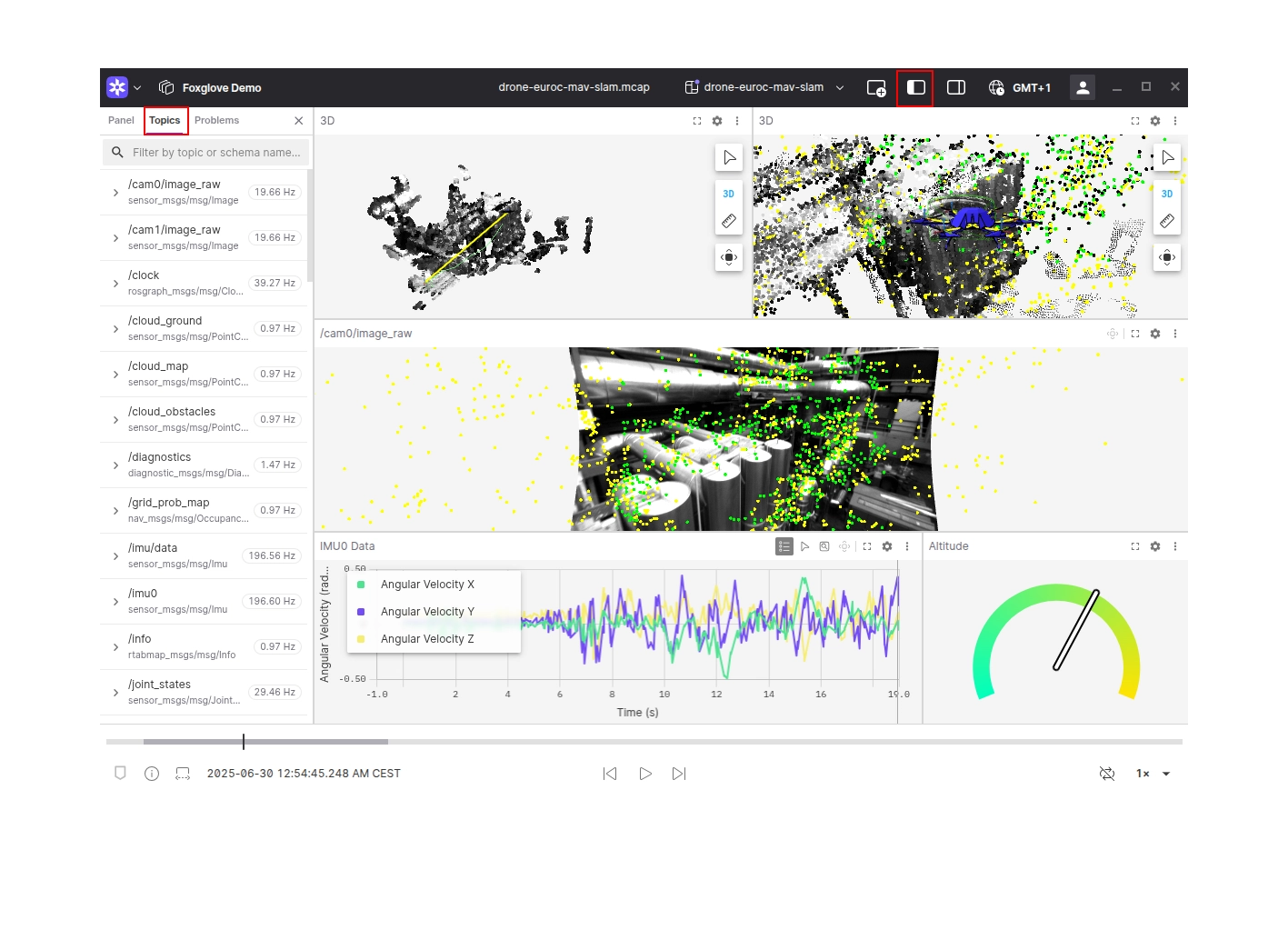
Inspect in Foxglove:
- Open Foxglove.
- Open a local file or drag the MCAP/folder into the app.
- Open
Topicsand confirm the expected topics exist. - Add
Raw Messagesfor/humanoid/control/action. - Add
Imagepanels for camera topics. - Add
Plotpanels for joint positions, velocities, action norm, and safety state. - Add a
3Dpanel if TF and robot model data are present.
Foxglove documentation describes opening MCAP files locally and exploring topics on a timeline. This is exactly why MCAP should be the raw-log standard: the data supervisor can reject broken episodes before any training export finishes.
How to use McapWriterOptions YAML
rosbag2_storage_mcap lets you pass --storage-config-file to configure mcap::McapWriterOptions. A reasonable production starting point is:
# mcap_writer_options.yaml
noChunkCRC: false
noAttachmentCRC: false
enableDataCRC: false
noSummaryCRC: false
noChunking: false
noMessageIndex: false
noSummary: false
chunkSize: 4194304
compression: "Zstd"
compressionLevel: "Fast"
forceCompression: false
Record with the config:
ros2 bag record -s mcap \
  -o ~/humanoid_logs/episode_000123_raw \
  --storage-config-file mcap_writer_options.yaml \
  /tf /tf_static /humanoid/joint_states /humanoid/control/action
The important options:
| Option | Beginner explanation | Suggested default |
|---|---|---|
noChunking |
If true, the writer does not put records into chunks. This may reduce write overhead, but you lose much of the indexing/compression behavior |
false for long-term raw logs |
chunkSize |
Target uncompressed chunk size | 4 MB is a good starting point |
compression |
None, Lz4, or Zstd |
Zstd for storage, Lz4 if CPU is tight |
compressionLevel |
Faster writing or smaller files | Fast or Fastest on the robot |
noChunkCRC |
Disables chunk CRC checks | false when you care about corruption checks |
enableDataCRC |
Enables CRC for the whole data section, useful when not chunking | false when chunking is enabled |
noMessageIndex |
Disables message indexes | false, because time/topic export needs indexes |
noSummary |
Disables the summary section | false, because tooling and seeking benefit from it |
forceCompression |
Compresses every chunk even if not beneficial | false |
The ROS 2 MCAP docs also provide presets such as fastwrite and zstd_small. fastwrite is optimized for high write throughput by using settings like no chunking and no summary CRC, but the docs warn that it is not ideal as a long-term storage format unless you post-process it, because seeking and reading subsets of topics can be limited. For humanoid data collection, a practical policy is:
| Situation | Configuration |
|---|---|
| CPU-constrained robot during safety pilot | --storage-preset-profile fastwrite, then convert/compress immediately after collection |
| Normal production collection | YAML with Zstd/Fast, chunking on, indexes on |
| Archive after QA | Convert to zstd_small or compress offline |
Example post-session conversion:
# convert_to_archive.yaml
output_bags:
  - uri: episode_000123_archive
    storage_id: mcap
    storage_preset_profile: zstd_small
ros2 bag convert \
  -i ~/humanoid_logs/episode_000123_raw \
  -o convert_to_archive.yaml
Map humanoid topics into dataset schema
Do not start by coding the exporter. Start with a topic table. A good schema says which topics are observations, actions, instructions, metadata, and quality signals.
| ROS 2 topic | Example message type | Role in raw log | Suggested dataset field |
|---|---|---|---|
/humanoid/head_camera/image_raw |
sensor_msgs/msg/Image |
Ego/head camera | observation.images.head |
/humanoid/left_wrist_camera/image_raw |
sensor_msgs/msg/Image |
Left wrist camera | observation.images.left_wrist |
/humanoid/right_wrist_camera/image_raw |
sensor_msgs/msg/Image |
Right wrist camera | observation.images.right_wrist |
/humanoid/joint_states |
sensor_msgs/msg/JointState |
Proprioception | observation.state |
/humanoid/imu |
sensor_msgs/msg/Imu |
Base orientation and acceleration | observation.imu or part of state |
/tf, /tf_static |
tf2_msgs/msg/TFMessage |
Frame tree | Calibration/metadata, not always direct training input |
/humanoid/teleop/raw_command |
custom/msg | Human operator input | teleop.raw or debug-only field |
/humanoid/control/action |
custom/msg or Float32MultiArray |
Actual command sent to the controller | action |
/humanoid/safety/state |
custom/msg | E-stop, mode, fault | episode.quality, filters |
/humanoid/task/prompt |
std_msgs/msg/String |
Language instruction | task, language_instruction |
/humanoid/task/event |
custom/msg | Start, success, fail, discard | Episode boundaries and labels |
The LeRobot v3 documentation describes robot learning datasets with multimodal time-series data, sensorimotor signals, multi-camera video, and metadata. Its API examples expose keys such as observation.state, action, observation.images.front_left, and timestamp. If your goal is to train with LeRobot, you do not need unusual field names. Map your MCAP topics into the common conventions first.
A training frame after export may look like:
sample = {
    "episode_index": 123,
    "frame_index": 42,
    "timestamp": 8.400,  # seconds from episode start
    "observation.state": joint_state_vector,
    "observation.images.head": head_rgb,
    "observation.images.left_wrist": left_wrist_rgb,
    "observation.images.right_wrist": right_wrist_rgb,
    "action": action_vector,
    "task": "Pick up the blue bin and place it on the shelf.",
}
Timestamp policy is where many exporters quietly break. An MCAP message has log_time and publish_time in nanoseconds. A ROS message may also have header.stamp. You need an explicit policy:
| Timestamp | Use when | Risk |
|---|---|---|
header.stamp |
The sensor driver timestamps capture time correctly | Some custom actions do not have a header |
MCAP publish_time |
You want the time the node published the message | It may lag capture time after processing |
MCAP log_time |
You want the time the recorder received the message | It reflects network and recorder load |
Recommended beginner policy:
- If a message has a trustworthy
header.stamp, use it as semantic time. - Always keep MCAP
log_timefor debugging recorder delay. - Write
timestamp = (t - episode_start_t) / 1e9when exporting to LeRobot. - Do not modify or resample the raw log. Interpolation belongs in the exporter.
Episode boundaries should be timestamped
A common mistake is to treat one bag folder as one good demonstration. On a humanoid, the operator may spend 10 seconds preparing, testing the gripper, resetting stance, and only then starting the task. You need episode boundaries.
The simplest approach is a timestamped event topic:
/humanoid/task/event
  stamp: 2026-06-10T10:01:02.123Z
  episode_id: "episode_000123"
  event_type: "START" | "SUCCESS" | "FAIL" | "DISCARD" | "RESET"
  note: "left wrist camera bumped at 00:13"
The exporter can cut from START to SUCCESS, ignore preparation and reset time, and mark failed episodes if it sees FAIL or DISCARD. During the pilot, you can publish JSON in std_msgs/msg/String. In production, define a real message type so Foxglove and the exporter can validate fields.
Export to LeRobot without losing time
The minimal pipeline is:
MCAP raw log
  -> reader iterates by topic/time
  -> choose episode window
  -> decode cameras/state/action
  -> align on action or camera clock
  -> write LeRobot Parquet/MP4/metadata
Pseudo-code:
episode_start_ns = find_event("START").timestamp_ns
episode_end_ns = find_event("SUCCESS").timestamp_ns

frames = []
for action_msg in iter_topic("/humanoid/control/action", episode_start_ns, episode_end_ns):
    t_ns = choose_timestamp(action_msg)
    frame = {
        "timestamp": (t_ns - episode_start_ns) / 1e9,
        "observation.state": nearest("/humanoid/joint_states", t_ns),
        "observation.images.head": nearest_frame("/humanoid/head_camera/image_raw", t_ns),
        "observation.images.left_wrist": nearest_frame("/humanoid/left_wrist_camera/image_raw", t_ns),
        "observation.images.right_wrist": nearest_frame("/humanoid/right_wrist_camera/image_raw", t_ns),
        "action": decode_action(action_msg),
        "task": current_prompt(t_ns),
    }
    frames.append(frame)
Here, action is the clock because imitation learning usually learns "observation at time t -> action at time t". If cameras run at 30 FPS and control runs at 20 Hz, choose the nearest camera frame for each action. If the policy trains at 10 Hz, downsample after alignment. Never downsample the MCAP raw log.
Timestamp checklist:
| Check | Pass condition |
|---|---|
| Monotonic timestamps | timestamp increases within the episode |
| Camera-action gap | Nearest image is within a threshold, for example 50 ms |
| Header vs log delta | Sensor header.stamp is not unexpectedly far from MCAP log_time |
| Dropped frames | Frame indices do not skip excessively |
| Safety filter | Episodes with E-stop or fault are excluded from the default train split |
Export to Robo-DM while keeping MCAP as source of truth
The Robo-DM paper frames the larger problem: robot datasets include video, text, numerical modalities, and multiple camera streams, which makes curation, distribution, and loading difficult. Robo-DM proposes an efficient open-source data management toolkit using self-contained EBML-based storage, strong compression, and faster retrieval. The paper also emphasizes preserving original timestamps so alignment does not rely on fragile heuristics.
That does not mean your first pilot must record directly into Robo-DM. For a ROS 2 humanoid stack, a clean architecture is:
Robot ROS 2 graph
  -> immutable MCAP raw log
  -> QA report
  -> Robo-DM trajectory store for large-scale training/retrieval
MCAP keeps the original record for ROS 2 replay and Foxglove inspection. Robo-DM or LeRobot becomes a derived training artifact. When an evaluation run fails, you return to the MCAP file to inspect original action, original camera frames, original TF, and original safety events.
Recommended config for a 10-episode pilot
If you are starting as a beginner, use this config:
# pilot_mcap_writer_options.yaml
noChunkCRC: false
noAttachmentCRC: false
enableDataCRC: false
noSummaryCRC: false
noChunking: false
noMessageIndex: false
noSummary: false
chunkSize: 4194304
compression: "Zstd"
compressionLevel: "Fast"
forceCompression: false
Record:
ros2 bag record -s mcap \
  -o ~/humanoid_logs/$(date +%Y%m%d_%H%M%S)_pilot \
  --storage-config-file pilot_mcap_writer_options.yaml \
  /clock /tf /tf_static /robot_description \
  /humanoid/head_camera/image_raw \
  /humanoid/left_wrist_camera/image_raw \
  /humanoid/right_wrist_camera/image_raw \
  /humanoid/joint_states \
  /humanoid/imu \
  /humanoid/teleop/raw_command \
  /humanoid/control/action \
  /humanoid/safety/state \
  /humanoid/task/prompt \
  /humanoid/task/event
After each episode:
ros2 bag info -s mcap ~/humanoid_logs/20260610_100102_pilot
ros2 bag play -s mcap ~/humanoid_logs/20260610_100102_pilot --rate 0.5
Then open the bag in Foxglove and have the data supervisor mark:
| Item | Pass/Fail |
|---|---|
| All three cameras are visible throughout the task window | |
| Joint state and action frequency are stable | |
| Prompt matches the task | |
| No E-stop occurred in the training segment | |
| Replay does not fail because of missing message types | |
| Exporter writes monotonically increasing timestamps |
Common mistakes
Recording only MP4 video and no action. Video is useful for review, but a policy needs actions. Record the actual action topic sent to the controller.
Recording only normalized actions. Raw logs should preserve physical meaning where possible: radians, meters, Newtons, gripper range, and metadata. Normalization is an exporter step.
Changing topic names between pilot days. If today is /humanoid/control/action and tomorrow is /action, the exporter accumulates special cases. Stabilize naming early.
Disabling indexes to save a small amount of space and forgetting post-processing. A data center needs seeking by time and topic. noMessageIndex: false and noSummary: false are sane defaults.
Skipping start/success/fail events. Without boundaries, you may train on preparation, operator discussion, and reset behavior.
Trusting one timestamp without audit. Keep semantic time from header.stamp when available and recorder time from MCAP. When alignment fails, the difference between those clocks is the clue.
Technical references
- ROS 2
rosbag2_storage_mcapdocumentation - MCAP ROS 2 guide
- MCAP format specification
- Foxglove ROS 2 docs
- LeRobotDataset v3.0 docs
- Robo-DM paper
Conclusion
MCAP does not replace LeRobot or Robo-DM. It sits before them. Its job is to preserve raw truth: which topics were published, which message types were used, which timestamps were recorded, which actions were sent, which cameras were active, and which safety events occurred. If you design this layer correctly, a humanoid episode can be replayed with ros2 bag play -s mcap, inspected in Foxglove, exported to LeRobot for fast training, or moved into Robo-DM for large-scale management.
In part 4, we will move one step downstream: designing the LeRobot/Robo-DM exporter, train/validation splits, video storage, metadata, and statistics without turning a clean raw log into an opaque training artifact.