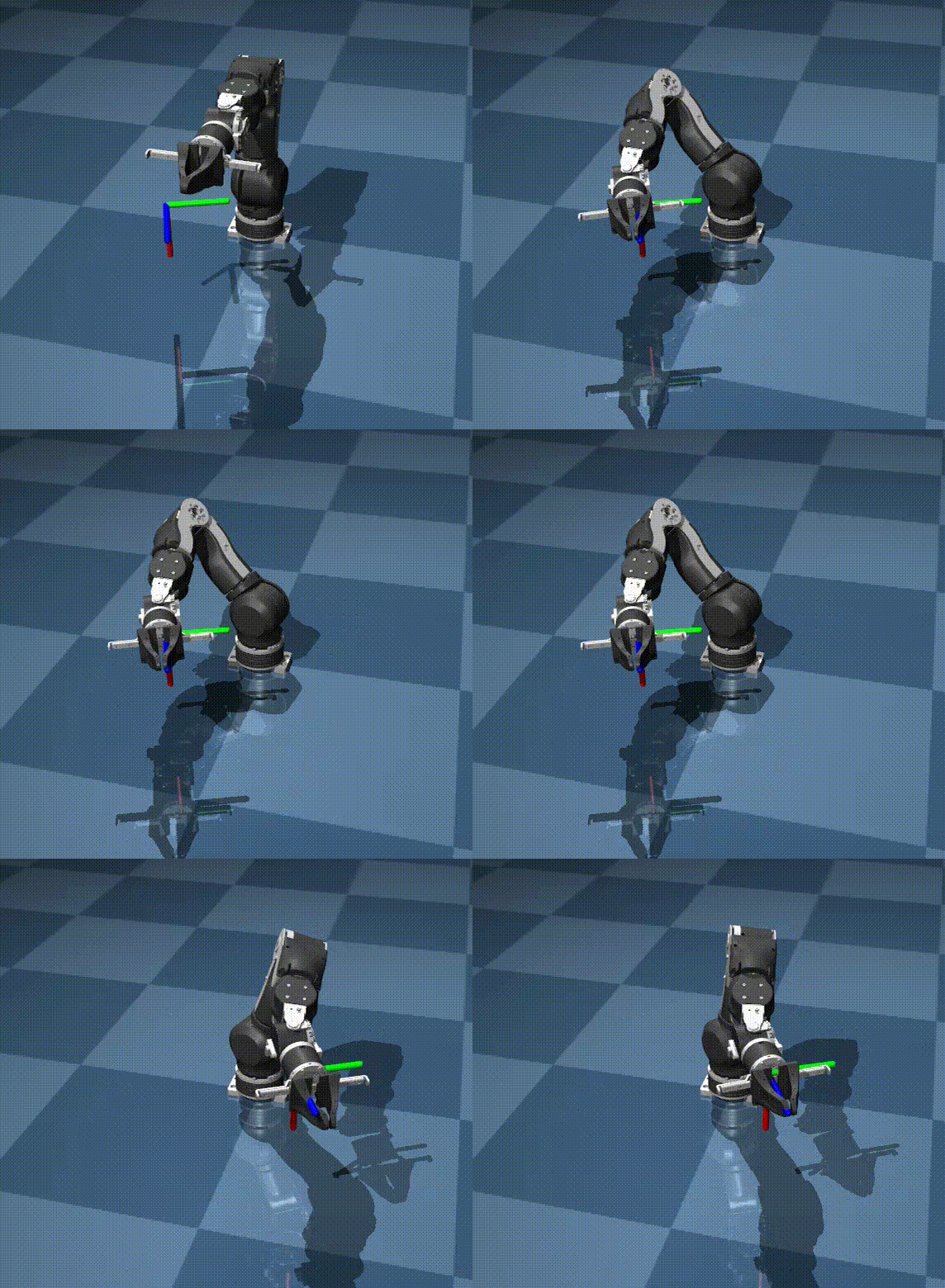
OpenArm Simulation & Data Collection: From Isaac Lab to SimpleVLA-RL
In the previous post, we deployed SimpleVLA-RL on a physical OpenArm. But what if you don't have the robot yet — or you want to experiment faster before investing $6,500 in hardware? Simulation is the optimal path. This post walks you through every step: installing Isaac Lab, running OpenArm in a virtual environment, collecting demonstration data, and converting it to the format that SimpleVLA-RL (veRL + OpenVLA-OFT stack) can consume.
This is a pure SimpleVLA-RL tutorial — no LeRobot involved. The entire pipeline from data collection to training goes through OpenVLA-OFT format and the veRL framework.
Why Start in Simulation?
Before spending thousands of dollars on hardware, there are four compelling reasons to begin in simulation:
1. Complete safety — A 7-DoF robot arm can cause serious damage if the policy fails. In simulation, you can run thousands of episodes without worrying about the robot crashing into the table, dropping objects, or burning out servos.
2. Superior speed — Isaac Lab running on GPU can simulate hundreds of environments in parallel. Collecting 1,000 demonstrations in simulation takes a few hours; a real robot would need weeks.
3. Zero cost — You only need an NVIDIA GPU (8GB+ VRAM for simulation, 24GB+ for VLA training later). No need to buy a $6,500 robot, no workspace setup, no camera configuration.
4. Fully scalable — Want to try a new task? Change the reward function and rerun. Need more data? Increase the number of parallel environments. No physical bottlenecks.
Here is the overall pipeline:
Isaac Lab (OpenArm sim) → Train RL expert → Collect demonstrations
→ Convert to OpenVLA-OFT format → SFT training → RL fine-tuning
→ Sim-to-real transfer → Physical OpenArm
Step 1: Install Isaac Lab + OpenArm Simulation
System Requirements
- OS: Ubuntu 22.04 (required)
- GPU: NVIDIA with driver 535+ and CUDA 12.x
- Isaac Sim: v5.1.0
- Isaac Lab: v2.3.0
- Python: 3.11
- VRAM: 8GB+ for simulation, 24GB+ for VLA training
Method 1: Docker (Recommended)
Docker is the fastest and lowest-risk approach. NVIDIA provides a pre-built container with everything installed:
# Pull Isaac Lab container
docker pull nvcr.io/nvidia/isaac-lab:2.3.0

# Run container with GPU access
docker run --gpus all -it --rm \
  --network host \
  -v ~/openarm_data:/workspace/data \
  -e DISPLAY=$DISPLAY \
  -v /tmp/.X11-unix:/tmp/.X11-unix \
  nvcr.io/nvidia/isaac-lab:2.3.0 bash
Key flags explained:
--gpus all: Mount all GPUs into the container-v ~/openarm_data:/workspace/data: Mount a data directory to save demonstrations outside the container-e DISPLAYand-v /tmp/.X11-unix: Enable GUI rendering (needed to visualize the simulation)
Method 2: Local Installation with Conda
If you want more control or need deeper debugging:
# Create conda environment
conda create -n isaaclab python=3.11 -y
conda activate isaaclab

# Install Isaac Sim (follow NVIDIA guide)
pip install isaacsim==5.1.0 --extra-index-url https://pypi.nvidia.com

# Clone and install Isaac Lab
git clone https://github.com/isaac-sim/IsaacLab.git
cd IsaacLab
pip install -e .
Install OpenArm for Isaac Lab
This is the most critical step — clone the openarm_isaac_lab repository from Enactic:
# Clone OpenArm Isaac Lab package
git clone https://github.com/enactic/openarm_isaac_lab.git
cd openarm_isaac_lab

# Install OpenArm package
pip install -e source/openarm
This package registers OpenArm environments into the Isaac Lab registry. After installation, verify by listing all available environments:
# Verify OpenArm environments are registered
python ./scripts/tools/list_envs.py
You should see these environments in the output:
Isaac-Reach-OpenArm-v0— Reach a target point in spaceIsaac-Lift-Cube-OpenArm-v0— Lift a cube off the tableIsaac-Open-Drawer-OpenArm-v0— Open a drawerIsaac-Reach-OpenArm-Bi-v0— Bimanual reaching (dual-arm)

Step 2: Explore Available Tasks
Choosing the Right Task
Among the 4 available tasks, Isaac-Lift-Cube-OpenArm-v0 is the best starting point because:
- It is closest to the real-world "box grasping" task
- It is complex enough to produce valuable demonstrations (approach + grasp + lift)
- It has a clear reward function (cube height > threshold = success)
- The community has many baselines for comparison
However, if you are completely new, start with Isaac-Reach-OpenArm-v0 first. The reach task is much simpler (just move the end-effector to a target position), trains faster, and helps you verify your setup works correctly before moving to harder tasks.
Visualize the Task
Run the play script to see the task in action:
# Visualize Isaac-Lift-Cube in simulation
python ./scripts/reinforcement_learning/rsl_rl/play.py \
  --task Isaac-Lift-Cube-OpenArm-v0

# Or try reach first (simpler)
python ./scripts/reinforcement_learning/rsl_rl/play.py \
  --task Isaac-Reach-OpenArm-v0
When running play.py, you will see an Isaac Sim window with the OpenArm robot on a table and a red cube. The robot will execute random actions — this helps you understand the observation space and action space before training.
Understanding Action Space and Observation Space
OpenArm is a 7-DoF (7 joints) + 1 gripper robot, with a total 8-DoF action space:
| Joint | Description | Range |
|---|---|---|
| Joint 1 | Base rotation | -180 deg to 180 deg |
| Joint 2 | Shoulder | -90 deg to 90 deg |
| Joint 3 | Elbow | -180 deg to 180 deg |
| Joint 4 | Wrist 1 | -180 deg to 180 deg |
| Joint 5 | Wrist 2 | -180 deg to 180 deg |
| Joint 6 | Wrist 3 | -180 deg to 180 deg |
| Joint 7 | Wrist rotation | -180 deg to 180 deg |
| Gripper | Open/close | 0 (closed) to 1 (open) |
Observation space includes:
- Joint positions (8 values)
- Joint velocities (8 values)
- End-effector position (3 values: x, y, z)
- End-effector orientation (4 values: quaternion)
- Object position (3 values — cube position)
- Object orientation (4 values)
- Goal position (3 values — target height for lift task)
Important note: OpenVLA-OFT defaults to 7-DoF (6 joints + gripper). OpenArm has 8-DoF, so you will need to adapt the action dimension — details in Step 5.
Step 3: Train an RL Policy — Creating the "Expert" for Demonstrations
The goal of this step is NOT to deploy the RL policy on a real robot. The goal is to create an expert policy good enough to generate high-quality demonstrations. These demonstrations will be used for SFT (Supervised Fine-Tuning) of OpenVLA-OFT.
Run Training
# Train RL policy with rsl_rl
python ./scripts/reinforcement_learning/rsl_rl/train.py \
  --task Isaac-Lift-Cube-OpenArm-v0 \
  --headless \
  --num_envs 256

# If your GPU is smaller (8GB), reduce num_envs
python ./scripts/reinforcement_learning/rsl_rl/train.py \
  --task Isaac-Lift-Cube-OpenArm-v0 \
  --headless \
  --num_envs 64
The --headless flag disables rendering to speed up training. --num_envs is the number of parallel environments — this is where Isaac Lab shines: 256 environments running simultaneously on GPU, collecting experience hundreds of times faster than real-time.
OpenArm Isaac Lab supports 3 RL frameworks:
- rsl_rl — Lightweight, fast, suitable for locomotion and simple manipulation
- rl_games — NVIDIA's framework, optimized for Isaac Lab
- skrl — Flexible, easy to customize, supports many algorithms
For the Lift Cube task, either rsl_rl or rl_games works well. Training typically converges after 500-1000 iterations (roughly 30 minutes to 2 hours depending on your GPU).
Monitor Training with TensorBoard
# Open TensorBoard in another terminal
tensorboard --logdir logs/rsl_rl/Isaac-Lift-Cube-OpenArm-v0

# Or if using rl_games
tensorboard --logdir logs/rl_games/Isaac-Lift-Cube-OpenArm-v0
Key metrics to watch:
- Episode reward: Should increase steadily and stabilize — the policy is learning
- Success rate: Percentage of episodes where the cube is lifted to the correct position
- Episode length: Should decrease — the policy is finding faster solutions
When to stop training? When success rate reaches >90% consistently over 50+ iterations. You do not need a perfect policy — just one good enough to generate quality demonstrations. A 95% success rate policy produces demonstrations far superior to manual teleoperation.
Verify the Trained Policy
# Run the trained policy to see results
python ./scripts/reinforcement_learning/rsl_rl/play.py \
  --task Isaac-Lift-Cube-OpenArm-v0 \
  --checkpoint logs/rsl_rl/Isaac-Lift-Cube-OpenArm-v0/best_model.pt
You should see the OpenArm approach the cube, grasp it, and lift it smoothly. If the policy still has issues (dropping the cube, approaching from the wrong angle), continue training or tune the reward function.
Step 4: Collect Demonstrations from the Expert Policy
This is the transition step from RL to the VLA pipeline. Instead of using the RL policy directly, we use it as an "expert teacher" to generate demonstrations for SFT.
Why Not Use the RL Policy Directly?
The RL policy works well in simulation but has significant limitations for real-world deployment:
- Observation gap: The RL policy receives state vectors (joint positions, object positions) — a real robot only has camera images
- No generalization: The RL policy only knows one specific task, it does not understand language instructions
- Brittle: Small changes in the environment (lighting, cube position) can cause the policy to fail
SimpleVLA-RL solves all of these by: using a VLA model (OpenVLA-OFT) that takes camera images + language instructions and outputs actions. But the VLA needs demonstrations for SFT first.
Set Up Camera in Simulation
Isaac Lab supports adding cameras to the robot or the environment. You need at least one camera to capture RGB images for the VLA:
# Add camera config to the environment
# File: source/openarm/openarm/tasks/manipulation/lift/lift_env_cfg.py

from isaaclab.sensors import CameraCfg

# Camera mounted on the robot "head" (or at a fixed position)
camera_cfg = CameraCfg(
    prim_path="/World/envs/env_.*/Robot/camera_link",
    update_period=0.1,  # 10 Hz
    height=256,
    width=256,
    data_types=["rgb"],
    spawn=None,  # Camera already in URDF/USD
)
Note on resolution: VLA models typically work well with 224x224 or 256x256. Higher resolution (640x480) does not necessarily improve results but significantly increases VRAM consumption during training.
If the OpenArm URDF/USD does not have a camera link, you can add a fixed-position camera:
# Fixed camera looking down at the workspace
fixed_camera_cfg = CameraCfg(
    prim_path="/World/envs/env_.*/Camera",
    offset=CameraCfg.OffsetCfg(
        pos=(0.5, 0.0, 0.8),   # In front of robot, looking down
        rot=(0.7071, 0.0, 0.7071, 0.0),  # 90 degree rotation
    ),
    update_period=0.1,
    height=256,
    width=256,
    data_types=["rgb"],
)
Run Expert Policy and Record Demonstrations
import torch
import numpy as np
from pathlib import Path
import json

def collect_demonstrations(
    env,
    policy,
    num_episodes=1000,
    save_dir="./openarm_demos"
):
    """
    Collect demonstrations from an RL expert policy.
    Each episode = sequence of (image, state, action, language).
    """
    save_path = Path(save_dir)
    save_path.mkdir(parents=True, exist_ok=True)

    success_count = 0
    episode_id = 0

    for ep in range(num_episodes):
        obs = env.reset()
        episode_data = {
            "images": [],
            "states": [],
            "actions": [],
            "language": "pick up the red cube and lift it",
            "success": False
        }

        done = False
        step = 0

        while not done and step < 200:  # Max 200 steps per episode
            # Get action from expert policy
            with torch.no_grad():
                action = policy(obs)

            # Capture camera image
            camera_data = env.scene["camera"].data
            rgb_image = camera_data.output["rgb"][0].cpu().numpy()

            # Record step data
            episode_data["images"].append(rgb_image)
            episode_data["states"].append(
                obs["joint_pos"][0].cpu().numpy().tolist()
            )
            episode_data["actions"].append(
                action[0].cpu().numpy().tolist()
            )

            # Step environment
            obs, reward, done, info = env.step(action)
            step += 1

        # Check if episode was successful
        if info.get("success", False):
            episode_data["success"] = True
            success_count += 1

            # Only save successful episodes
            ep_dir = save_path / f"episode_{episode_id:05d}"
            ep_dir.mkdir(exist_ok=True)

            # Save images
            for i, img in enumerate(episode_data["images"]):
                np.save(ep_dir / f"image_{i:04d}.npy", img)

            # Save metadata
            meta = {
                "language": episode_data["language"],
                "states": episode_data["states"],
                "actions": episode_data["actions"],
                "num_steps": len(episode_data["actions"]),
                "success": True
            }
            with open(ep_dir / "metadata.json", "w") as f:
                json.dump(meta, f)

            episode_id += 1

        if (ep + 1) % 100 == 0:
            print(f"Collected {ep+1}/{num_episodes} episodes, "
                  f"success: {success_count}/{ep+1} "
                  f"({success_count/(ep+1)*100:.1f}%)")

    print(f"\nDone! {success_count} successful episodes saved to {save_dir}")
    return success_count
How many demonstrations do you need?
- Minimum: 200-300 episodes for basic SFT
- Recommended: 500-1000 episodes for good results
- Optimal: 1000-2000 episodes if you have the time
With a 95% success rate expert policy and 256 parallel environments, collecting 1000 successful episodes takes approximately 15-30 minutes on an RTX 3090.
Collect Feasible Seeds
Similar to the pre_collect_robotwin2_seed.sh script in SimpleVLA-RL, you need to identify initial configurations where the expert policy can succeed:
# Run expert policy on many random seeds
# Save successful seeds for later RL training
python collect_feasible_seeds.py \
  --task Isaac-Lift-Cube-OpenArm-v0 \
  --checkpoint logs/rsl_rl/best_model.pt \
  --num_seeds 5000 \
  --output_file feasible_seeds.json
Feasible seeds are important for the RL training phase later (Step 5 in the overview post): you only want RL fine-tuning on configurations where the task can actually be completed, avoiding wasted compute on impossible scenarios.
Step 5: Convert Data to OpenVLA-OFT Format
This is the most technical step — and where OpenArm differs from standard robots.
The Action Dimension Problem
OpenVLA-OFT defaults to 7-DoF: 6 joints + 1 gripper. But OpenArm has 8-DoF: 7 joints + 1 gripper. You need to handle this mismatch.
There are 3 approaches:
Approach 1: Pad action dimension (Recommended)
Keep the full 8-DoF and pad with zeros for any unused action dimensions in OpenVLA-OFT:
# In rob_dataset.py, when registering the OpenArm environment
OPENARM_ACTION_DIM = 8  # 7 joints + 1 gripper

def pad_action_to_openvla(action_8dof):
    """
    OpenVLA-OFT expects a fixed action dimension.
    Pad or truncate to match.
    """
    # Option A: Use 8-DoF directly
    # Requires modifying model config to accept 8-DoF
    return action_8dof
Approach 2: Map 8-DoF to 7-DoF
If one of OpenArm's 7 joints is less critical (e.g., the final wrist rotation), you can merge or drop it:
def map_8dof_to_7dof(action_8dof):
    """
    Map 8-DoF OpenArm actions to 7-DoF OpenVLA-OFT format.
    Drop joint 7 (wrist rotation) as it has minimal impact on grasping.
    """
    # joints[0:6] = 6 primary joints
    # joints[6] = wrist rotation (dropped)
    # joints[7] = gripper
    return np.concatenate([
        action_8dof[:6],       # 6 primary joints
        action_8dof[7:8]       # gripper
    ])
Approach 3: Modify the OpenVLA-OFT model
Change the action head in the model to output 8 dimensions. This is the most flexible approach but requires code modifications:
# In OpenVLA-OFT config
action_dim = 8  # Instead of the default 7
I recommend Approach 1 or Approach 3 since they preserve all information. Approach 2 is simpler but may affect precision during grasping.

Register OpenArm Environment in rob_dataset.py
For SimpleVLA-RL to recognize the OpenArm environment, you need to register it in rob_dataset.py:
# In simplevla-rl/rob_dataset.py

# Add OpenArm environment configuration
OPENARM_LIFT_CONFIG = {
    "env_name": "Isaac-Lift-Cube-OpenArm-v0",
    "action_dim": 8,          # 7 joints + 1 gripper
    "image_size": (256, 256),
    "max_episode_steps": 200,
    "language_instruction": "pick up the red cube and lift it",
    "action_scale": 1.0,
    "camera_names": ["camera_0"],
}

# Register environment
ENV_CONFIGS["openarm_lift_cube"] = OPENARM_LIFT_CONFIG
Add Max Steps in rob_rollout.py
# In simplevla-rl/rob_rollout.py

# Add OpenArm max steps
MAX_STEPS = {
    # ... existing environments ...
    "openarm_lift_cube": 200,
    "openarm_reach": 100,
    "openarm_drawer": 250,
}
Convert Demonstration Data to OpenVLA-OFT Format
OpenVLA-OFT requires each demonstration episode in this format:
episode/
├── image_0000.png    # RGB frame at timestep 0
├── image_0001.png    # RGB frame at timestep 1
├── ...
└── trajectory.json   # Actions + language instruction
Conversion script:
import json
import numpy as np
from PIL import Image
from pathlib import Path

def convert_to_openvla_format(
    raw_demo_dir: str,
    output_dir: str,
    action_mapping: str = "pad"  # "pad", "map7dof", or "direct8dof"
):
    """
    Convert OpenArm demonstrations to OpenVLA-OFT format.

    Parameters:
    - raw_demo_dir: Directory containing raw demonstrations from Step 4
    - output_dir: Output directory for OpenVLA-OFT
    - action_mapping: How to handle 8-DoF to 7-DoF conversion
    """
    raw_path = Path(raw_demo_dir)
    out_path = Path(output_dir)
    out_path.mkdir(parents=True, exist_ok=True)

    episodes = sorted(raw_path.glob("episode_*"))
    print(f"Converting {len(episodes)} episodes...")

    for ep_dir in episodes:
        ep_name = ep_dir.name
        ep_out = out_path / ep_name
        ep_out.mkdir(exist_ok=True)

        # Load metadata
        with open(ep_dir / "metadata.json") as f:
            meta = json.load(f)

        # Convert images: .npy to .png
        num_steps = meta["num_steps"]
        for i in range(num_steps):
            img_array = np.load(ep_dir / f"image_{i:04d}.npy")
            img = Image.fromarray(img_array.astype(np.uint8))
            img.save(ep_out / f"image_{i:04d}.png")

        # Process actions
        actions = np.array(meta["actions"])  # Shape: (T, 8)

        if action_mapping == "map7dof":
            # Map 8-DoF to 7-DoF (drop joint 7)
            actions = np.concatenate([
                actions[:, :6],
                actions[:, 7:8]
            ], axis=1)
        elif action_mapping == "pad":
            # Keep 8-DoF as is, pad if needed
            pass

        # Create trajectory.json for OpenVLA-OFT
        trajectory = {
            "language_instruction": meta["language"],
            "actions": actions.tolist(),
            "states": meta["states"],
            "num_steps": num_steps,
            "env_name": "openarm_lift_cube",
            "action_dim": actions.shape[1],
        }

        with open(ep_out / "trajectory.json", "w") as f:
            json.dump(trajectory, f, indent=2)

    print(f"Conversion complete! {len(episodes)} episodes saved to {output_dir}")

# Run conversion
convert_to_openvla_format(
    raw_demo_dir="./openarm_demos",
    output_dir="./openarm_openvla_data",
    action_mapping="direct8dof"  # Or "map7dof" for 7-DoF
)
Configure Action Chunks
Action chunking is an important technique in SimpleVLA-RL. Instead of predicting one action per timestep, the model predicts a sequence of actions (an action chunk). This reduces prediction frequency and improves temporal consistency.
For OpenArm, the action chunk size depends on the task:
| Task | Horizon (steps) | Recommended Chunk Size |
|---|---|---|
| Reach | 50-100 | 10-15 |
| Lift Cube | 100-200 | 15-20 |
| Open Drawer | 150-250 | 20-25 |
# Configure action chunks for OpenArm
ACTION_CHUNK_CONFIG = {
    "openarm_reach": {
        "chunk_size": 10,
        "overlap": 3,  # Overlap between consecutive chunks
    },
    "openarm_lift_cube": {
        "chunk_size": 15,
        "overlap": 5,
    },
    "openarm_drawer": {
        "chunk_size": 20,
        "overlap": 7,
    },
}
Step 6: Verify Data Quality
Before proceeding to SFT training, verify your data:
def verify_dataset(data_dir: str):
    """Check dataset integrity."""
    data_path = Path(data_dir)
    episodes = sorted(data_path.glob("episode_*"))

    print(f"Total episodes: {len(episodes)}")

    action_dims = []
    episode_lengths = []
    errors = []

    for ep_dir in episodes:
        traj_file = ep_dir / "trajectory.json"
        if not traj_file.exists():
            errors.append(f"{ep_dir.name}: missing trajectory.json")
            continue

        with open(traj_file) as f:
            traj = json.load(f)

        num_steps = traj["num_steps"]
        actions = np.array(traj["actions"])

        # Check action dimension consistency
        action_dims.append(actions.shape[1])
        episode_lengths.append(num_steps)

        # Check images exist
        for i in range(num_steps):
            img_file = ep_dir / f"image_{i:04d}.png"
            if not img_file.exists():
                errors.append(f"{ep_dir.name}: missing {img_file.name}")

    print(f"Action dimensions: {set(action_dims)}")
    print(f"Episode lengths: min={min(episode_lengths)}, "
          f"max={max(episode_lengths)}, "
          f"mean={np.mean(episode_lengths):.1f}")
    print(f"Errors: {len(errors)}")
    for err in errors[:10]:
        print(f"  - {err}")

verify_dataset("./openarm_openvla_data")
Expected output:
Total episodes: 1000
Action dimensions: {8}
Episode lengths: min=45, max=198, mean=127.3
Errors: 0
Hardware Requirements Summary
| Step | GPU VRAM | Estimated Time |
|---|---|---|
| Isaac Lab simulation | 8GB+ | — |
| RL expert training | 8GB+ | 30 min - 2 hours |
| Collect 1000 demos | 8GB+ | 15-30 min |
| SFT training (next post) | 24GB+ (A100/4090) | 4-8 hours |
| RL fine-tuning (next post) | 24GB+ (A100/4090) | 8-16 hours |
Tips and Pitfalls
1. Start with Reach, not Lift — Isaac-Reach-OpenArm-v0 converges much faster (10-15 minutes of training). Use it to verify your entire pipeline works before moving to Lift Cube.
2. Camera placement matters — Camera position significantly affects sim-to-real transfer. Place the camera at a position similar to your real setup (typically a third-person view from the front, about 50-80cm high).
3. Domain randomization — When collecting demonstrations, randomize lighting, textures, and camera position slightly. This helps the VLA model become more robust during real-world transfer:
# Randomization in Isaac Lab
from isaaclab.envs import DirectRLEnvCfg

class LiftCubeRandomizedCfg(DirectRLEnvCfg):
    # Randomize cube position
    cube_pos_noise = 0.05  # +/-5cm
    # Randomize lighting
    light_intensity_range = (0.5, 1.5)
    # Randomize camera
    camera_pos_noise = 0.02  # +/-2cm
4. Action scale consistency — Ensure the action scale is identical between simulation and the real robot. Isaac Lab uses radians, while the OpenArm SDK may use degrees — check carefully.
5. Keep raw data — Always preserve raw demonstrations (images + actions) alongside the converted format. If you need to change the format later (e.g., from 8-DoF to 7-DoF), you will not need to collect data again.
Next Steps
You now have a dataset of OpenArm demonstrations in OpenVLA-OFT format. The next steps in the SimpleVLA-RL pipeline:
- SFT Training — Fine-tune OpenVLA-OFT on the demonstrations (details in the training post)
- RL Fine-tuning — Use the veRL framework with binary rewards in simulation
- Sim-to-real transfer — Deploy to a physical OpenArm (see the results post)
The entire pipeline requires no LeRobot — everything runs through the veRL + OpenVLA-OFT stack. This is the key difference from the LeRobot-based pipeline: you get full control over the training loop and reward shaping, but in exchange you need to write more integration code.

