ROS 2 — Where to Start?
If you want to learn ROS 2 to build robots, this article is your starting point. We will go from installing ROS 2 Jazzy on Ubuntu 24.04, creating a workspace, writing your first publisher/subscriber node (both Python and C++), to building and running your own package. I have guided many engineers through ROS 2 beginnings, and experience shows: just follow each step carefully, you will master the fundamentals quickly.
If you don't yet know what ROS 2 is or why you should use ROS 2 instead of ROS 1, read Introduction to ROS 2: Next-Generation Robot Programming Framework first.
Which ROS 2 distro (as of June 2026)? Four common choices: Jazzy Jalisco (LTS, May 2024, Ubuntu 24.04) — recommended for beginners for stability + complete docs; Lyrical Luth (newest LTS, May 2026, Ubuntu 24.04) — newest but its ecosystem is still catching up; Kilted Kaiju (May 2025, non-LTS); Humble (LTS, 2022, Ubuntu 22.04, EOL May 2027) — still very popular. This series uses Jazzy. On Humble, just swap
jazzy→humbleand Ubuntu 24.04 → 22.04.
Series roadmap (7 parts): (1) Setup & First Node (this part) → (2) Topics, Services, Actions → (3) Parameters, Launch, Lifecycle → (4) TF2, URDF, RViz2 → (5) ros2_control & Hardware → (6) Nav2 → (7) Simulation, rosbag2, Debug.
Install ROS 2 Jazzy on Ubuntu 24.04
System Requirements
- OS: Ubuntu 24.04 LTS (Noble Numbat) — both desktop and server versions are fine
- RAM: Minimum 4GB, recommend 8GB or more
- Disk: At least 10GB free for desktop installation, 5GB for base installation
- CPU: x86_64 or ARM64 (Raspberry Pi 4 also works)
Step 1: Configure Locale
ROS 2 requires a locale with UTF-8 support:
sudo apt update && sudo apt install locales
sudo locale-gen en_US en_US.UTF-8
sudo update-locale LC_ALL=en_US.UTF-8 LANG=en_US.UTF-8
export LANG=en_US.UTF-8

# Verify
locale
Step 2: Add ROS 2 Repository
# Install dependencies
sudo apt install -y software-properties-common curl
sudo add-apt-repository universe

# Add GPG key
sudo curl -sSL https://raw.githubusercontent.com/ros/rosdistro/master/ros.key \
  -o /usr/share/keyrings/ros-archive-keyring.gpg

# Add repository
echo "deb [arch=$(dpkg --print-architecture) signed-by=/usr/share/keyrings/ros-archive-keyring.gpg] \
  http://packages.ros.org/ros2/ubuntu $(. /etc/os-release && echo $UBUNTU_CODENAME) main" \
  | sudo tee /etc/apt/sources.list.d/ros2.list > /dev/null
Step 3: Install ROS 2 Jazzy
sudo apt update
sudo apt upgrade -y

# Full desktop installation (includes RViz, Gazebo demos, rqt tools)
sudo apt install -y ros-jazzy-desktop

# Or minimal installation (libraries + CLI only, no GUI)
# sudo apt install -y ros-jazzy-ros-base

# Dev tools (compiler, cmake, colcon...) — needed for C++ builds
sudo apt install -y ros-dev-tools
Installation takes approximately 5-15 minutes depending on your internet speed.
Step 4: Install Build Tools
# colcon — ROS 2's main build tool
sudo apt install -y python3-colcon-common-extensions

# rosdep — dependency manager
# rosdep is included in ros-dev-tools above
sudo rosdep init
rosdep update
Step 5: Source Environment
# Add to .bashrc for automatic sourcing on terminal open
echo "source /opt/ros/jazzy/setup.bash" >> ~/.bashrc
source ~/.bashrc

# Verify installation
ros2 --version
# Output: ros2 0.xx.x
Quick Test with Turtlesim
Before proceeding, make sure everything works:
# Terminal 1: Run turtlesim
ros2 run turtlesim turtlesim_node

# Terminal 2: Control turtle with keyboard
ros2 run turtlesim turtle_teleop_key
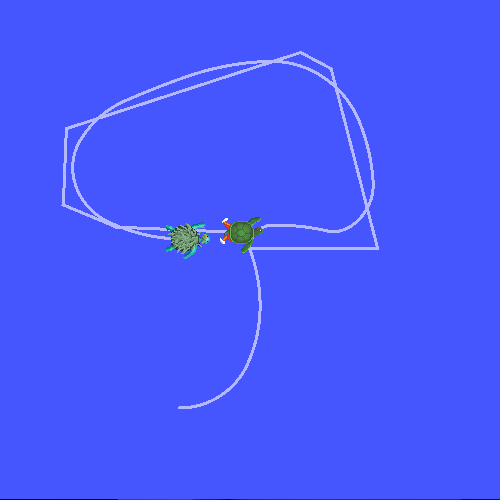
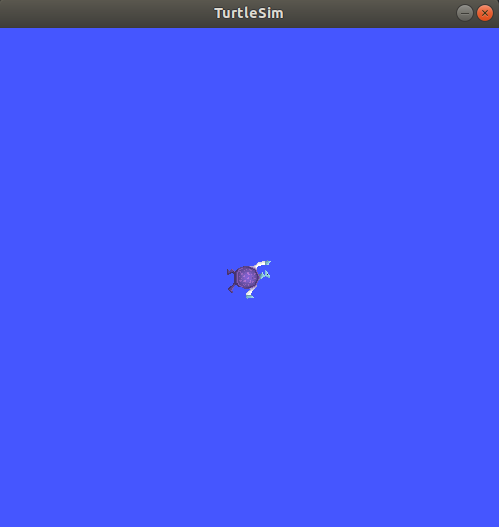
If you see a turtle window and can control it with arrow keys — congratulations, ROS 2 is ready!
Hands-on reference repo: dottantgal/ROS2_learning is the most complete C++ & Python example set for ROS 2 Jazzy — nodes, timers, topics, services, actions, TF2, all paired in both languages. Clone the
jazzybranch to follow along with this series.
Create ROS 2 Workspace
A workspace is where you keep all your source code. ROS 2 uses colcon as the build system (replacing ROS 1's catkin).
# Create workspace structure
mkdir -p ~/ros2_ws/src
cd ~/ros2_ws

# Build empty workspace (creates build, install, log directories)
colcon build
source install/setup.bash
Resulting structure:
~/ros2_ws/
├── build/          # Build artifacts
├── install/        # Installed packages (source this)
├── log/            # Build logs
└── src/            # Your source code
Important Tip: Always source workspace after build:
# Add to .bashrc
echo "source ~/ros2_ws/install/setup.bash" >> ~/.bashrc
Create Your First Package
ROS 2 supports 2 package types: ament_python (Python) and ament_cmake (C++). This series uses both: this first node is in Python for accessibility, and from Part 3 onward you will see parallel C++ (rclcpp) and Python (rclpy) examples — real robots often run control nodes in C++ for performance.
cd ~/ros2_ws/src

# Create Python package
ros2 pkg create --build-type ament_python my_first_robot \
  --dependencies rclpy std_msgs

# Result:
# my_first_robot/
# ├── my_first_robot/
# │   └── __init__.py
# ├── package.xml          # Metadata + dependencies
# ├── setup.py             # Python package config
# ├── setup.cfg            # Entry points config
# ├── resource/
# │   └── my_first_robot
# └── test/
Write Your First Publisher Node
A node is the basic processing unit in ROS 2. Each node is a process that does one specific task. Let's write a node that simulates a temperature sensor, publishing data to the /temperature topic.
Create Publisher File
# ~/ros2_ws/src/my_first_robot/my_first_robot/temperature_publisher.py
import rclpy
from rclpy.node import Node
from std_msgs.msg import Float32
import random


class TemperaturePublisher(Node):
    """Node simulating temperature sensor, publishes every second."""

    def __init__(self):
        super().__init__('temperature_publisher')

        # Create publisher: message type, topic name, queue size
        self.publisher_ = self.create_publisher(Float32, '/temperature', 10)

        # Timer calls callback every 1 second
        self.timer = self.create_timer(1.0, self.timer_callback)

        # Base temperature
        self.base_temp = 25.0

        self.get_logger().info('Temperature publisher node started!')

    def timer_callback(self):
        msg = Float32()
        # Simulate temperature fluctuation around 25°C
        msg.data = self.base_temp + random.uniform(-2.0, 2.0)

        self.publisher_.publish(msg)
        self.get_logger().info(f'Published temperature: {msg.data:.1f}°C')


def main(args=None):
    rclpy.init(args=args)

    node = TemperaturePublisher()

    try:
        rclpy.spin(node)  # Keep node running continuously
    except KeyboardInterrupt:
        pass
    finally:
        node.destroy_node()
        rclpy.shutdown()


if __name__ == '__main__':
    main()
Code Explanation
create_publisher(Float32, '/temperature', 10): Create publisher sendingFloat32messages to/temperaturetopic, queue size 10 (if subscriber is slow, keep at most 10 messages)create_timer(1.0, self.timer_callback): Calltimer_callbackevery 1 secondrclpy.spin(node): Keep node running, listen for callbacks — similar to event loop
Write a Subscriber Node
Now write a node that receives temperature data and processes it (e.g., warn when too hot):
# ~/ros2_ws/src/my_first_robot/my_first_robot/temperature_subscriber.py
import rclpy
from rclpy.node import Node
from std_msgs.msg import Float32


class TemperatureSubscriber(Node):
    """Node receiving temperature and warning when exceeding threshold."""

    def __init__(self):
        super().__init__('temperature_subscriber')

        # Create subscription
        self.subscription = self.create_subscription(
            Float32,
            '/temperature',
            self.listener_callback,
            10
        )

        # Warning thresholds
        self.warning_threshold = 26.5
        self.critical_threshold = 27.5

        self.get_logger().info('Temperature subscriber node started!')

    def listener_callback(self, msg):
        temp = msg.data

        if temp >= self.critical_threshold:
            self.get_logger().error(
                f'CRITICAL: Temperature {temp:.1f}°C exceeds {self.critical_threshold}°C!'
            )
        elif temp >= self.warning_threshold:
            self.get_logger().warn(
                f'WARNING: Temperature {temp:.1f}°C above normal'
            )
        else:
            self.get_logger().info(f'Temperature OK: {temp:.1f}°C')


def main(args=None):
    rclpy.init(args=args)
    node = TemperatureSubscriber()

    try:
        rclpy.spin(node)
    except KeyboardInterrupt:
        pass
    finally:
        node.destroy_node()
        rclpy.shutdown()


if __name__ == '__main__':
    main()
Register Entry Points and Build
Update setup.py
For ROS 2 to know how to run the nodes, register them in setup.py:
# ~/ros2_ws/src/my_first_robot/setup.py
from setuptools import find_packages, setup

package_name = 'my_first_robot'

setup(
    name=package_name,
    version='0.1.0',
    packages=find_packages(exclude=['test']),
    data_files=[
        ('share/ament_index/resource_index/packages',
            ['resource/' + package_name]),
        ('share/' + package_name, ['package.xml']),
    ],
    install_requires=['setuptools'],
    zip_safe=True,
    maintainer='your_name',
    maintainer_email='[email protected]',
    description='My first ROS 2 robot package',
    license='Apache-2.0',
    entry_points={
        'console_scripts': [
            'temp_pub = my_first_robot.temperature_publisher:main',
            'temp_sub = my_first_robot.temperature_subscriber:main',
        ],
    },
)
Build and Run
# Go to workspace root
cd ~/ros2_ws

# Build only your package (faster than building all)
colcon build --packages-select my_first_robot --symlink-install

# Source workspace again
source install/setup.bash

# Terminal 1: Run publisher
ros2 run my_first_robot temp_pub

# Terminal 2: Run subscriber
ros2 run my_first_robot temp_sub
The --symlink-install flag is very useful: it creates symlinks instead of copying files, so when you edit Python code, you don't need to rebuild (just restart the node).
You will see output like:
[INFO] [temperature_publisher]: Published temperature: 24.3°C
[INFO] [temperature_publisher]: Published temperature: 26.8°C
[INFO] [temperature_subscriber]: Temperature OK: 24.3°C
[WARN] [temperature_subscriber]: WARNING: Temperature 26.8°C above normal
Introspect with CLI Tools
ROS 2 CLI is powerful for debugging:
# List running nodes
ros2 node list
# /temperature_publisher
# /temperature_subscriber

# Get detailed node information
ros2 node info /temperature_publisher

# List all topics
ros2 topic list
# /temperature
# /parameter_events
# /rosout

# View topic data in real-time
ros2 topic echo /temperature

# Check publication rate
ros2 topic hz /temperature
# average rate: 1.000

# Check message type
ros2 topic type /temperature
# std_msgs/msg/Float32

# View message structure
ros2 interface show std_msgs/msg/Float32
# float32 data
Launch Files — Run Multiple Nodes at Once
Instead of opening many terminals, use a launch file:
# ~/ros2_ws/src/my_first_robot/launch/temperature_system.launch.py
from launch import LaunchDescription
from launch_ros.actions import Node


def generate_launch_description():
    return LaunchDescription([
        Node(
            package='my_first_robot',
            executable='temp_pub',
            name='temperature_publisher',
            output='screen',
            parameters=[{
                'publish_rate': 1.0,
            }],
        ),
        Node(
            package='my_first_robot',
            executable='temp_sub',
            name='temperature_subscriber',
            output='screen',
        ),
    ])
For launch files to be found, add to setup.py:
import os
from glob import glob

# Add to data_files:
data_files=[
    ('share/ament_index/resource_index/packages',
        ['resource/' + package_name]),
    ('share/' + package_name, ['package.xml']),
    # Add this for launch files
    (os.path.join('share', package_name, 'launch'),
        glob(os.path.join('launch', '*launch.[pxy][yma]*'))),
],
Create launch directory and rebuild:
mkdir -p ~/ros2_ws/src/my_first_robot/launch
# Copy launch file there

cd ~/ros2_ws
colcon build --packages-select my_first_robot --symlink-install
source install/setup.bash

# Run entire system
ros2 launch my_first_robot temperature_system.launch.py

Visualize with rqt_graph
# Install rqt (if not in desktop installation)
sudo apt install -y ros-jazzy-rqt ros-jazzy-rqt-graph

# Open graph viewer
ros2 run rqt_graph rqt_graph
You will see a diagram: temperature_publisher node connected to temperature_subscriber via /temperature topic. This is a very effective debug method when systems become complex.
Summary and Next Steps
In this article, you have:
- Installed complete ROS 2 Jazzy on Ubuntu 24.04
- Created workspace and first Python package
- Written publisher and subscriber nodes communicating via topics
- Used colcon build, launch files, and CLI tools for debugging
This is the foundation for everything that follows. In Part 2, we will dive deep into ROS 2's 3 communication primitives: Topics, Services, and Actions — so you know when to use what when designing robot systems.
Related Articles
- Introduction to ROS 2: Next-Generation Robot Programming Framework — Architecture overview, ROS 1 vs ROS 2 comparison
- SLAM and Navigation for Autonomous Robots — Apply ROS 2 for robot mapping and movement
- Python for Robot Control — Essential Python fundamentals for ROS 2