What is MoveIt2?
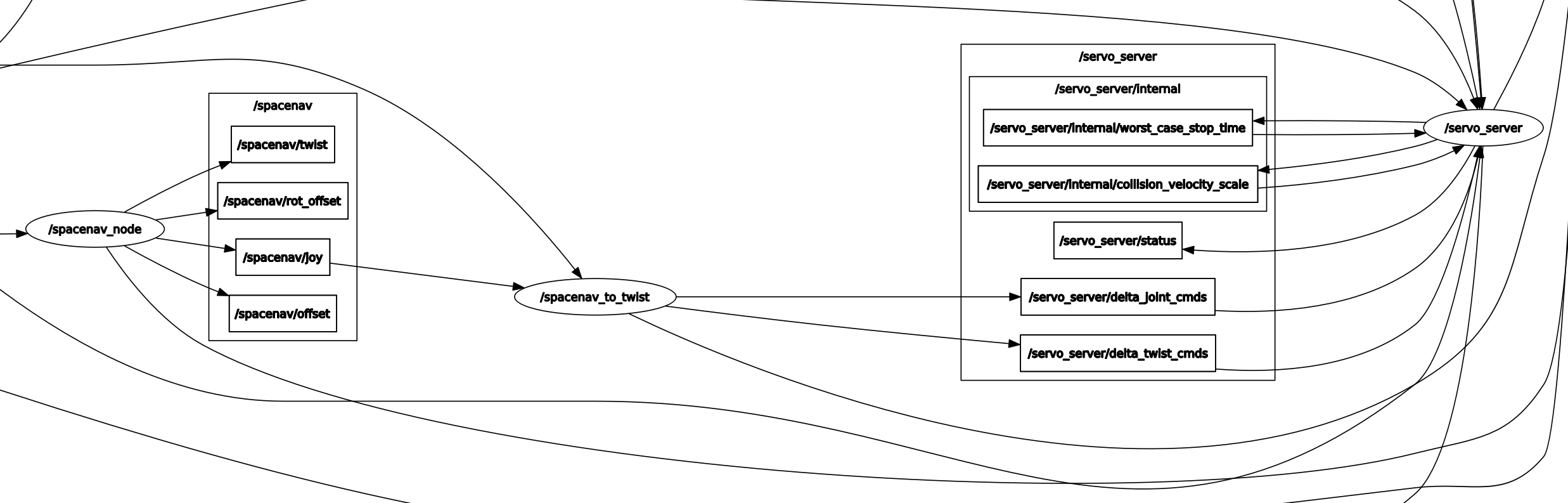
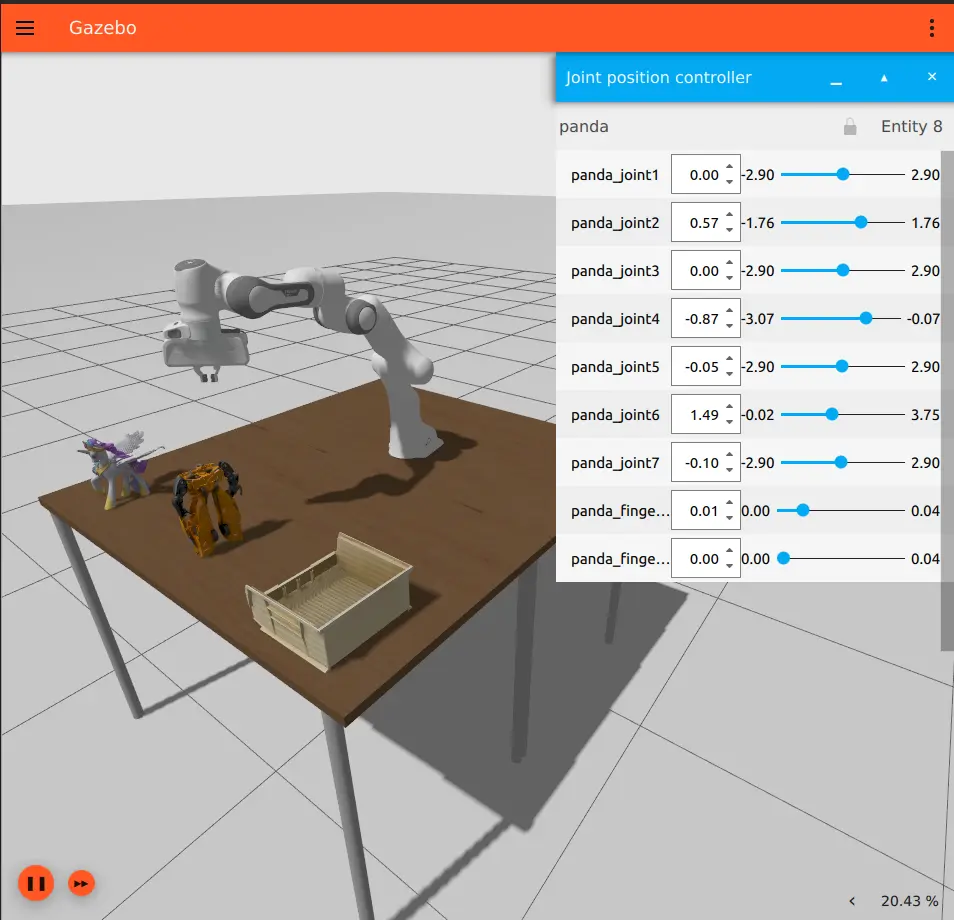
MoveIt2 is the most popular motion planning framework for robot arms in the ROS 2 ecosystem. It addresses a fundamental question: "How do I move a robot from configuration A to configuration B without collisions?" Rather than implementing inverse kinematics, collision checking, and trajectory optimization from scratch, MoveIt2 packages everything into a complete pipeline with an intuitive Python API.
In this guide, we'll walk through the entire pipeline: describing robots with URDF, configuring MoveIt2, and programming motion planning and pick-and-place tasks using Python.

MoveIt2 Architecture
Core Components
MoveIt2 consists of multiple modules working in harmony:
| Module | Function |
|---|---|
| Move Group | Central node that receives requests and orchestrates planning |
| Planning Scene | Manages 3D model of robot and environment |
| Motion Planner | Path-finding algorithms (OMPL, Pilz, CHOMP) |
| Trajectory Processing | Interpolation, time parameterization, smoothing |
| Kinematics Solver | IK/FK solver (KDL, IKFast, numerical) |
| Controller Interface | Communication with hardware controller |
Workflow
User Request (target pose)
    → Move Group receives request
    → Planning Scene checks collision
    → Motion Planner finds path
    → Trajectory Processing optimizes
    → Controller Interface sends to robot
Step 1: Describing Robot with URDF
What is URDF?
Unified Robot Description Format (URDF) is an XML file that describes robot geometry, joints, and materials. It's the primary input for MoveIt2.
<?xml version="1.0"?>
<robot name="my_6dof_arm" xmlns:xacro="http://www.ros.org/wiki/xacro">

  <!-- Base Link -->
  <link name="base_link">
    <visual>
      <geometry>
        <cylinder radius="0.05" length="0.02"/>
      </geometry>
      <material name="grey">
        <color rgba="0.5 0.5 0.5 1"/>
      </material>
    </visual>
    <collision>
      <geometry>
        <cylinder radius="0.05" length="0.02"/>
      </geometry>
    </collision>
  </link>

  <!-- Link 1 -->
  <link name="link1">
    <visual>
      <origin xyz="0 0 0.1" rpy="0 0 0"/>
      <geometry>
        <cylinder radius="0.03" length="0.2"/>
      </geometry>
    </visual>
    <collision>
      <origin xyz="0 0 0.1" rpy="0 0 0"/>
      <geometry>
        <cylinder radius="0.035" length="0.22"/>
      </geometry>
    </collision>
    <inertial>
      <mass value="1.0"/>
      <inertia ixx="0.01" ixy="0" ixz="0"
               iyy="0.01" iyz="0" izz="0.005"/>
    </inertial>
  </link>

  <!-- Joint 1: Base rotation -->
  <joint name="joint1" type="revolute">
    <parent link="base_link"/>
    <child link="link1"/>
    <origin xyz="0 0 0.01" rpy="0 0 0"/>
    <axis xyz="0 0 1"/>
    <limit lower="-3.14" upper="3.14"
           effort="50" velocity="1.57"/>
  </joint>

  <!-- ... similar for joints 2-6 ... -->

</robot>
Important note: collision geometry should be simpler than visual geometry (use cylinders/boxes instead of complex meshes) for faster collision checking.
SRDF: Semantic Robot Description
MoveIt2 needs SRDF to define joint groups (planning groups), self-collision pairs to ignore, and special poses:
<?xml version="1.0"?>
<robot name="my_6dof_arm">
  <!-- Planning Group -->
  <group name="arm">
    <joint name="joint1"/>
    <joint name="joint2"/>
    <joint name="joint3"/>
    <joint name="joint4"/>
    <joint name="joint5"/>
    <joint name="joint6"/>
  </group>

  <group name="gripper">
    <joint name="finger_joint_left"/>
    <joint name="finger_joint_right"/>
  </group>

  <!-- Named States -->
  <group_state name="home" group="arm">
    <joint name="joint1" value="0"/>
    <joint name="joint2" value="-1.57"/>
    <joint name="joint3" value="1.57"/>
    <joint name="joint4" value="0"/>
    <joint name="joint5" value="0"/>
    <joint name="joint6" value="0"/>
  </group_state>

  <!-- Self-collision: ignore link pairs that always touch -->
  <disable_collisions link1="base_link" link2="link1" reason="Adjacent"/>
  <disable_collisions link1="link1" link2="link2" reason="Adjacent"/>
</robot>
Step 2: MoveIt Setup Assistant
MoveIt Setup Assistant automatically generates SRDF and configuration files:
# Install MoveIt2 (ROS 2 Humble)
sudo apt install ros-humble-moveit

# Launch Setup Assistant
ros2 launch moveit_setup_assistant setup_assistant.launch.py
Setup Assistant will:
- Load your URDF
- Auto-detect self-collision pairs
- Allow you to create planning groups
- Define named poses (home, ready, pick...)
- Export a complete config package
Step 3: Planning Scene
Adding Obstacles to Environment
Planning Scene manages the 3D state. You need to add tables, walls, boxes so the motion planner can avoid collisions:
import rclpy
from rclpy.node import Node
from moveit_msgs.msg import CollisionObject, PlanningScene
from shape_msgs.msg import SolidPrimitive
from geometry_msgs.msg import Pose

class SceneManager(Node):
    def __init__(self):
        super().__init__('scene_manager')
        self.scene_pub = self.create_publisher(
            PlanningScene, '/planning_scene', 10
        )

    def add_box(self, name: str, position: list,
                dimensions: list, frame_id: str = 'base_link'):
        """Add a box to the planning scene."""
        co = CollisionObject()
        co.header.frame_id = frame_id
        co.id = name
        co.operation = CollisionObject.ADD

        box = SolidPrimitive()
        box.type = SolidPrimitive.BOX
        box.dimensions = dimensions  # [x, y, z]

        pose = Pose()
        pose.position.x = position[0]
        pose.position.y = position[1]
        pose.position.z = position[2]
        pose.orientation.w = 1.0

        co.primitives.append(box)
        co.primitive_poses.append(pose)

        scene = PlanningScene()
        scene.world.collision_objects.append(co)
        scene.is_diff = True
        self.scene_pub.publish(scene)
        self.get_logger().info(f'Added collision object: {name}')

# Usage
rclpy.init()
manager = SceneManager()

# Add table below robot
manager.add_box('table', [0.5, 0.0, -0.01], [1.0, 1.0, 0.02])

# Add obstacle in front
manager.add_box('obstacle', [0.3, 0.2, 0.2], [0.1, 0.1, 0.3])
Step 4: OMPL Motion Planners
Common Algorithms
MoveIt2 integrates OMPL (Open Motion Planning Library) with many sampling-based algorithms:
| Algorithm | Characteristics | When to Use |
|---|---|---|
| RRT* | Optimal, asymptotically converges | Find shortest path with time |
| RRT-Connect | Fast, bidirectional search | Default, most cases |
| PRM | Precompute roadmap, fast queries | Many queries in same environment |
| BiTRRT | Prioritizes low-cost regions | Custom cost function |
| KPIECE | Good for high-dimensional spaces | Robots with many DOF |
Planner Configuration
# ompl_planning.yaml
planner_configs:
  RRTstar:
    type: geometric::RRTstar
    range: 0.0          # auto
    goal_bias: 0.05
    delay_collision_checking: 1

  RRTConnect:
    type: geometric::RRTConnect
    range: 0.0

  PRM:
    type: geometric::PRM
    max_nearest_neighbors: 10

arm:
  default_planner_config: RRTConnect
  planner_configs:
    - RRTstar
    - RRTConnect
    - PRM
  projection_evaluator: joints(joint1, joint2, joint3)
  longest_valid_segment_fraction: 0.005
RRT* in Detail
Rapidly-exploring Random Tree Star (RRT*) works as follows:
- Sample a random point in configuration space
- Find nearest node in current tree
- Extend tree toward sample (check collision along path)
- Rewire: check if better path exists to nearby nodes
- Repeat until goal is reached
Step 4 (rewiring) is what distinguishes RRT* from standard RRT — it ensures the path converges to optimal as iterations increase.
Step 5: Python API — MoveGroupInterface
Basics: Moving to Target Pose
import rclpy
from rclpy.node import Node
from moveit2 import MoveIt2
from geometry_msgs.msg import PoseStamped
import numpy as np

class RobotController(Node):
    def __init__(self):
        super().__init__('robot_controller')

        self.moveit2 = MoveIt2(
            node=self,
            joint_names=[
                'joint1', 'joint2', 'joint3',
                'joint4', 'joint5', 'joint6'
            ],
            base_link_name='base_link',
            end_effector_name='tool0',
            group_name='arm',
        )

        # Configure planning
        self.moveit2.max_velocity = 0.3        # 30% max speed
        self.moveit2.max_acceleration = 0.2
        self.moveit2.planning_time = 5.0        # 5 second timeout
        self.moveit2.num_planning_attempts = 10  # Retry 10 times

    def move_to_pose(self, position: list, orientation: list):
        """
        Move end-effector to desired pose.
        position: [x, y, z] (meters)
        orientation: [qx, qy, qz, qw] (quaternion)
        """
        self.get_logger().info(
            f'Planning to position: {position}'
        )

        self.moveit2.move_to_pose(
            position=position,
            quat_xyzw=orientation,
        )
        self.moveit2.wait_until_executed()

        self.get_logger().info('Motion complete!')

    def move_to_joint_angles(self, angles: list):
        """Move to specific joint angles."""
        self.moveit2.move_to_configuration(angles)
        self.moveit2.wait_until_executed()

    def move_home(self):
        """Return to home position."""
        home = [0.0, -1.57, 1.57, 0.0, 0.0, 0.0]
        self.move_to_joint_angles(home)

# Main
rclpy.init()
controller = RobotController()

# Move to position in front of robot
controller.move_to_pose(
    position=[0.4, 0.0, 0.3],
    orientation=[0.0, 0.707, 0.0, 0.707]  # pointing down
)
Cartesian Path Planning
When end-effector must follow a straight line (e.g., drawing, welding, cutting):
def plan_cartesian_path(self, waypoints: list, step_size=0.01):
    """
    Plan Cartesian path through multiple waypoints.
    waypoints: list of [x, y, z] positions
    step_size: interpolation distance (meters)
    """
    from geometry_msgs.msg import Pose
    pose_waypoints = []

    for wp in waypoints:
        pose = Pose()
        pose.position.x = wp[0]
        pose.position.y = wp[1]
        pose.position.z = wp[2]
        # Keep current orientation
        pose.orientation.x = 0.0
        pose.orientation.y = 0.707
        pose.orientation.z = 0.0
        pose.orientation.w = 0.707
        pose_waypoints.append(pose)

    # Plan Cartesian path
    trajectory, fraction = self.moveit2.compute_cartesian_path(
        waypoints=pose_waypoints,
        max_step=step_size,
        avoid_collisions=True
    )

    self.get_logger().info(
        f'Cartesian path: {fraction*100:.1f}% achievable'
    )

    if fraction > 0.95:  # Accept if >95% path is feasible
        self.moveit2.execute(trajectory)
        return True
    return False

Real-World Example: Pick and Place
The most common industrial scenario — pick object from location A and place it at location B:
class PickAndPlace(RobotController):
    def __init__(self):
        super().__init__()
        # Gripper controller
        self.gripper = MoveIt2(
            node=self,
            joint_names=['finger_joint_left', 'finger_joint_right'],
            base_link_name='base_link',
            end_effector_name='gripper_tip',
            group_name='gripper',
        )

    def open_gripper(self):
        self.gripper.move_to_configuration([0.04, 0.04])
        self.gripper.wait_until_executed()

    def close_gripper(self):
        self.gripper.move_to_configuration([0.01, 0.01])
        self.gripper.wait_until_executed()

    def pick(self, object_position: list, approach_height=0.1):
        """
        Pick object at given position.
        1. Move above object
        2. Lower down
        3. Close gripper
        4. Lift up
        """
        x, y, z = object_position
        orientation = [0.0, 0.707, 0.0, 0.707]  # pointing down

        self.get_logger().info(f'Picking at [{x}, {y}, {z}]')

        # Approach: above object
        self.open_gripper()
        self.move_to_pose([x, y, z + approach_height], orientation)

        # Lower down (Cartesian path for straight approach)
        self.plan_cartesian_path([
            [x, y, z + approach_height],
            [x, y, z + 0.01],  # 1cm above surface
        ])

        # Grasp
        self.close_gripper()

        # Lift up
        self.plan_cartesian_path([
            [x, y, z + 0.01],
            [x, y, z + approach_height],
        ])

    def place(self, target_position: list, approach_height=0.1):
        """Place object at new location."""
        x, y, z = target_position
        orientation = [0.0, 0.707, 0.0, 0.707]

        self.get_logger().info(f'Placing at [{x}, {y}, {z}]')

        # Move above target
        self.move_to_pose([x, y, z + approach_height], orientation)

        # Lower down
        self.plan_cartesian_path([
            [x, y, z + approach_height],
            [x, y, z + 0.01],
        ])

        # Release
        self.open_gripper()

        # Withdraw
        self.plan_cartesian_path([
            [x, y, z + 0.01],
            [x, y, z + approach_height],
        ])

    def execute_pick_and_place(self, pick_pos, place_pos):
        """Complete pipeline."""
        self.move_home()
        self.pick(pick_pos)
        self.place(place_pos)
        self.move_home()
        self.get_logger().info('Pick and place complete!')

# Usage
rclpy.init()
pnp = PickAndPlace()
pnp.execute_pick_and_place(
    pick_pos=[0.4, -0.2, 0.02],   # Object on table
    place_pos=[0.4, 0.2, 0.02],   # Place to the right
)
Debugging and Practical Tips
1. Visualize in RViz2
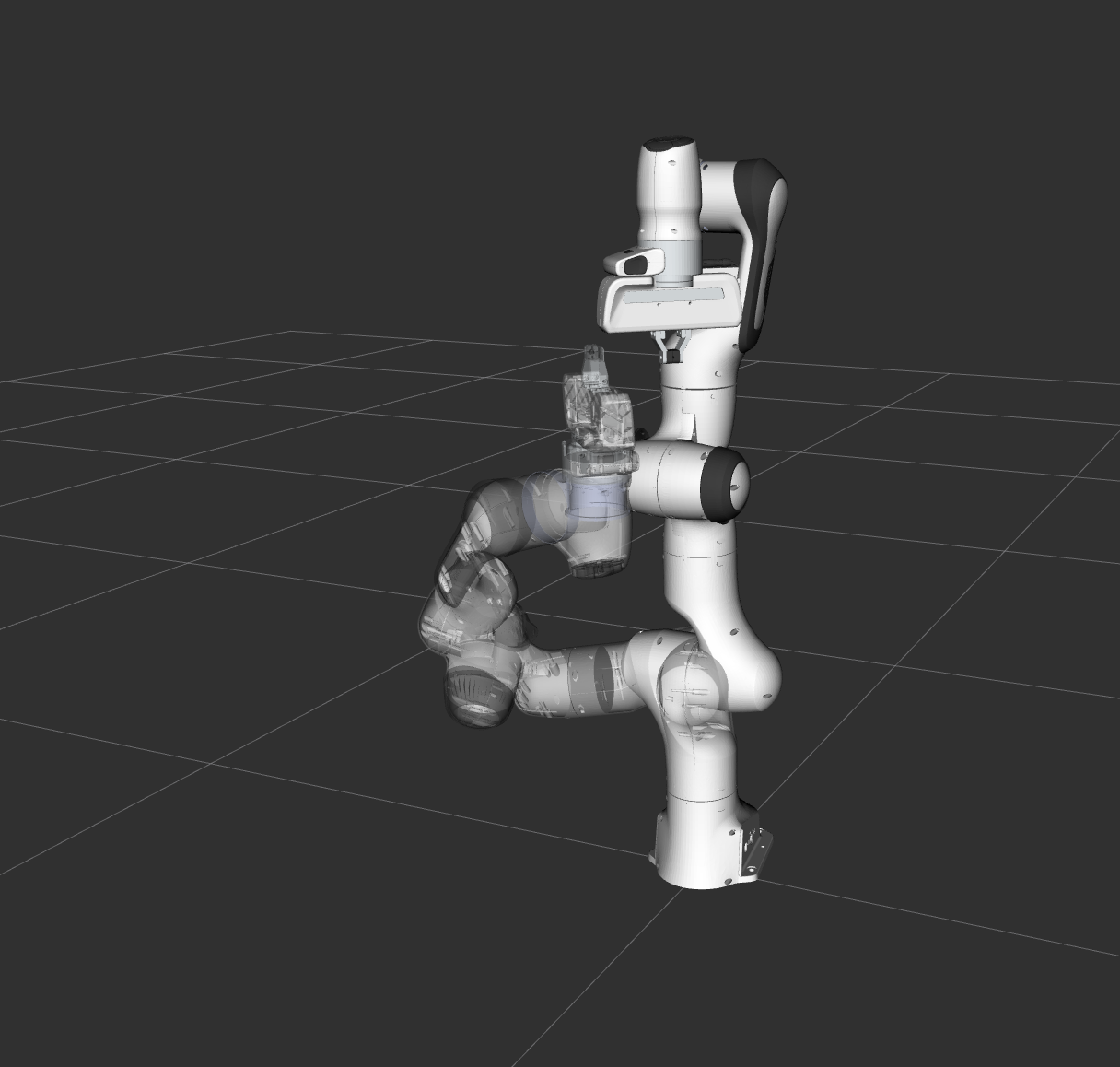
Always run RViz2 alongside to see planning scene, trajectories, and collision objects:
ros2 launch my_robot_moveit demo.launch.py
2. Check IK Solver
If MoveIt2 frequently fails planning, the issue may be with the IK solver:
# Check if IK solver finds solution
result = self.moveit2.compute_ik(
    position=[0.4, 0.0, 0.3],
    quat_xyzw=[0.0, 0.707, 0.0, 0.707]
)
if result is None:
    print("IK solver failed — target may be out of workspace")
3. Increase Planning Time for Complex Environments
# Complex environments need longer planning times
self.moveit2.planning_time = 15.0       # 15 seconds
self.moveit2.num_planning_attempts = 20  # 20 retries
4. Choose Appropriate Planner
# RRTConnect for speed (default)
self.moveit2.planner_id = 'RRTConnect'

# RRT* when path quality matters
self.moveit2.planner_id = 'RRTstar'

# PRM when planning many times in same scene
self.moveit2.planner_id = 'PRM'
Conclusion
MoveIt2 transforms complex motion planning into a few lines of Python API. The standard pipeline:
- URDF/SRDF describe robot
- Setup Assistant generates config
- Planning Scene describes environment
- Move Group plans and executes
To deepen your understanding of the IK algorithms behind MoveIt2, read Inverse Kinematics for 6-DOF Robot Arms with complete Python code. And if you're new to ROS 2, Introduction to ROS 2 will help you set up your first workspace.